

Kindly be advised that the Blink Copilot is currently in its beta phase.During this testing phase, the functionality of the
Blink Copilot is limited to the creation of a new Workflow from scratch or revising existing Workflow in the Editor.The ability to edit, update, and delete Workflows using the Blink Copilot is not yet available.Safe Use of AI
It is important that Blink does not use customer data for AI training. We adhere to industry standards to ensure your data remains secure, never stored or utilized for these purposes.
Using Blink Copilot on an Entire Workflow
- Open your workspace and select Create New Workflow.
-
In the top-left corner select the
Blink Copiloticon.
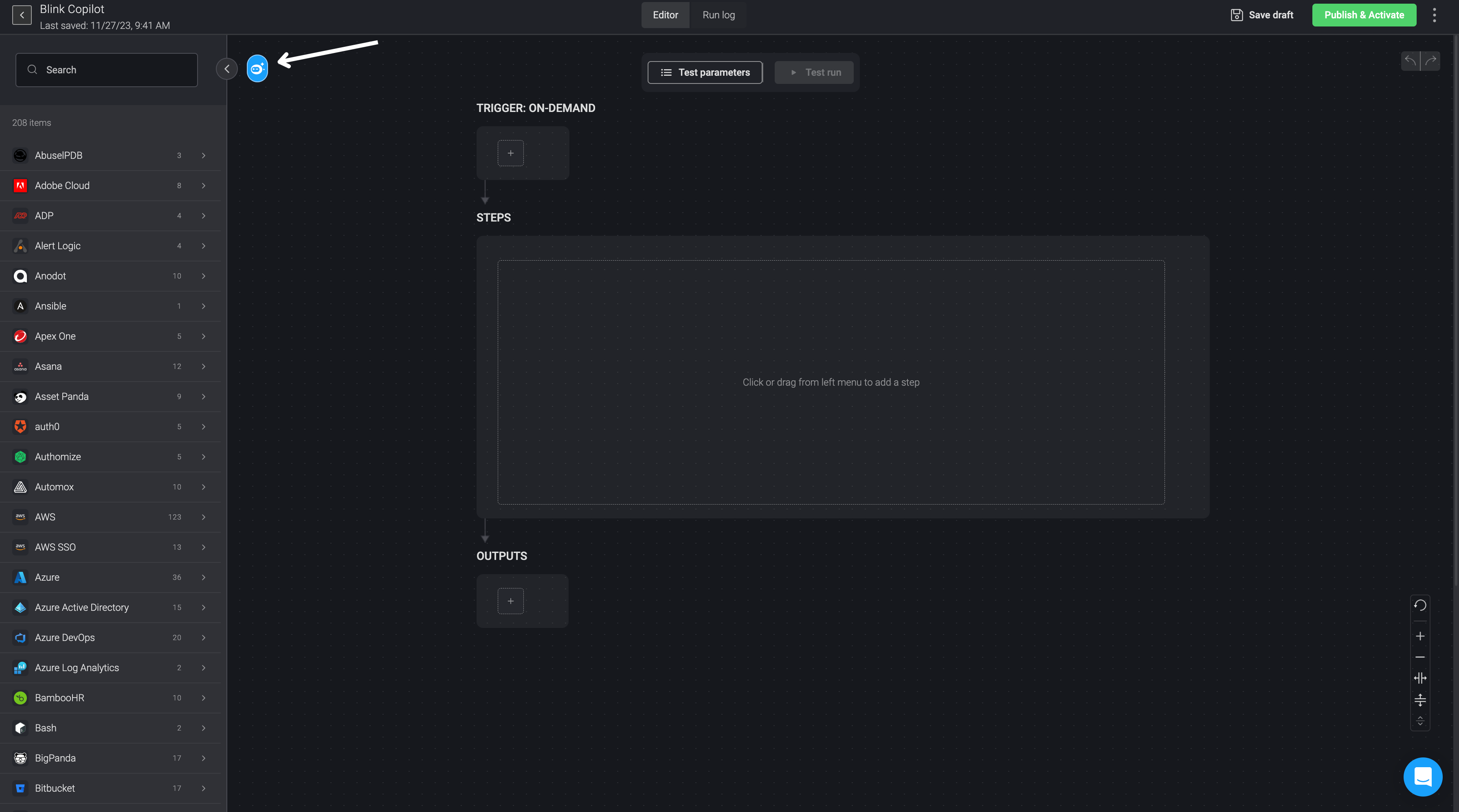
- A prompt interface will appear.
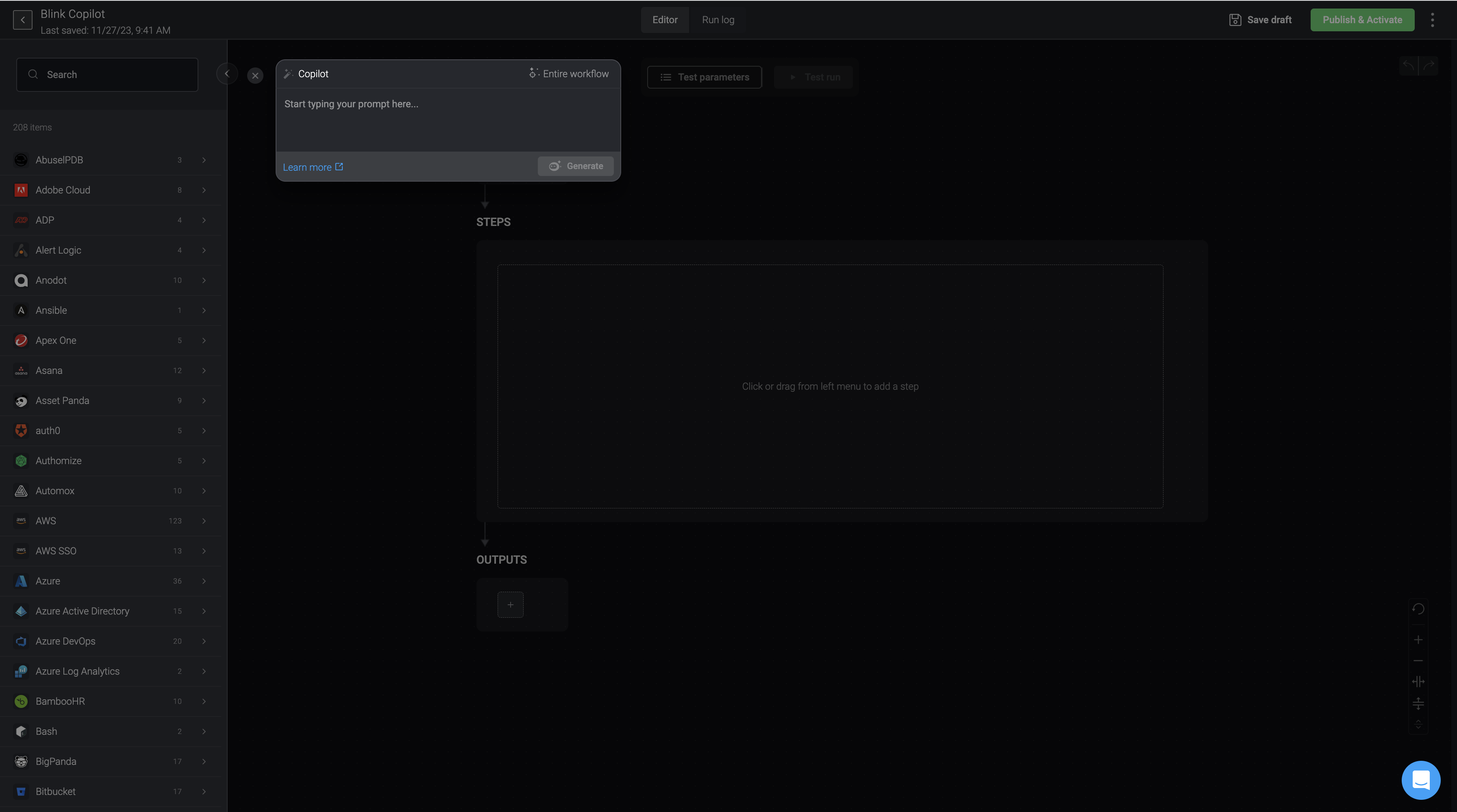
- Provide
Blink Copilotwith detailed instructions specifying the type of Workflow you want it to create and then press generate. It may take a few seconds to generate the Workflow. Explore the best methods for generating the ideal prompt by visiting Best Practices for using Blink Copilot
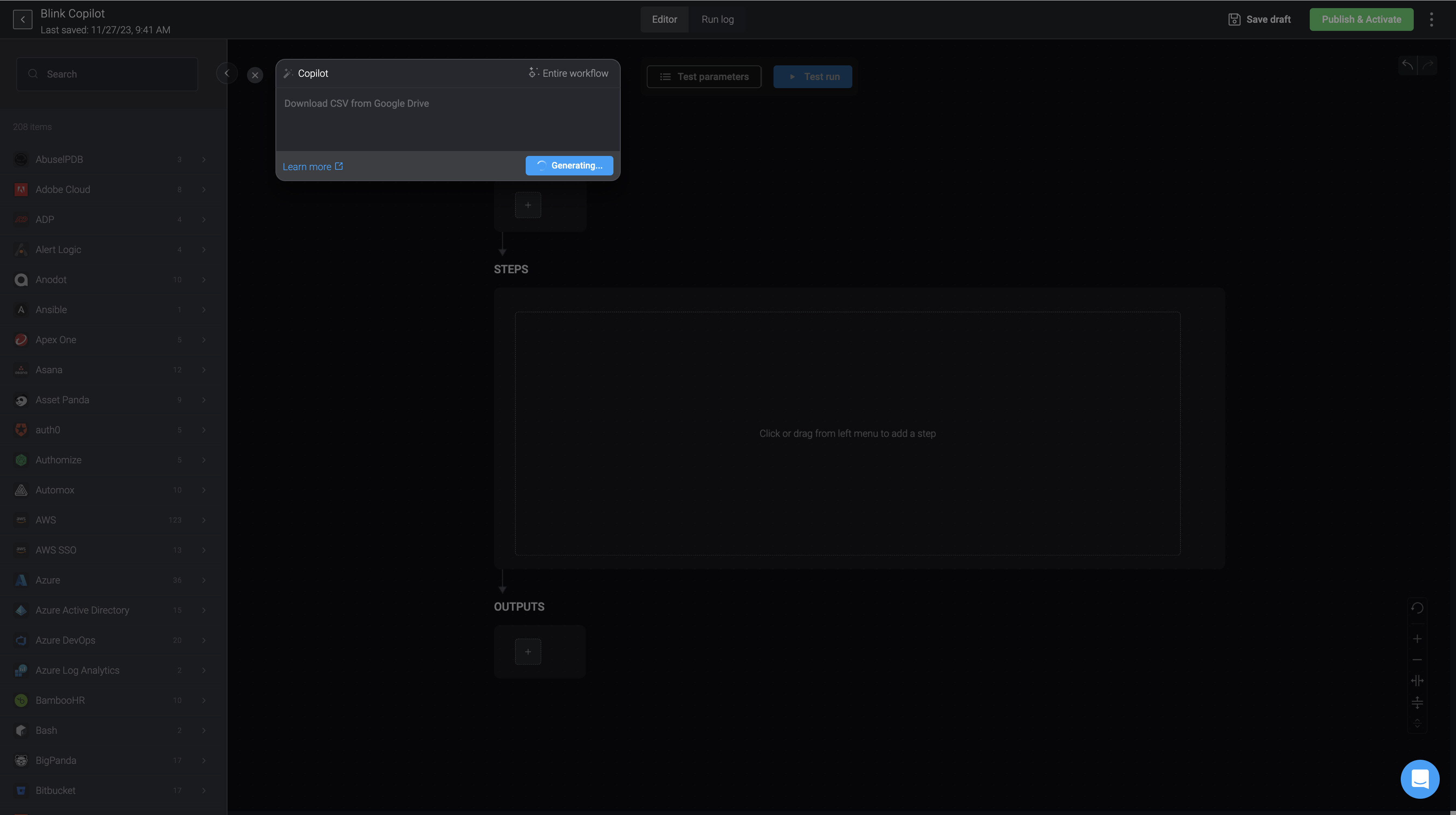
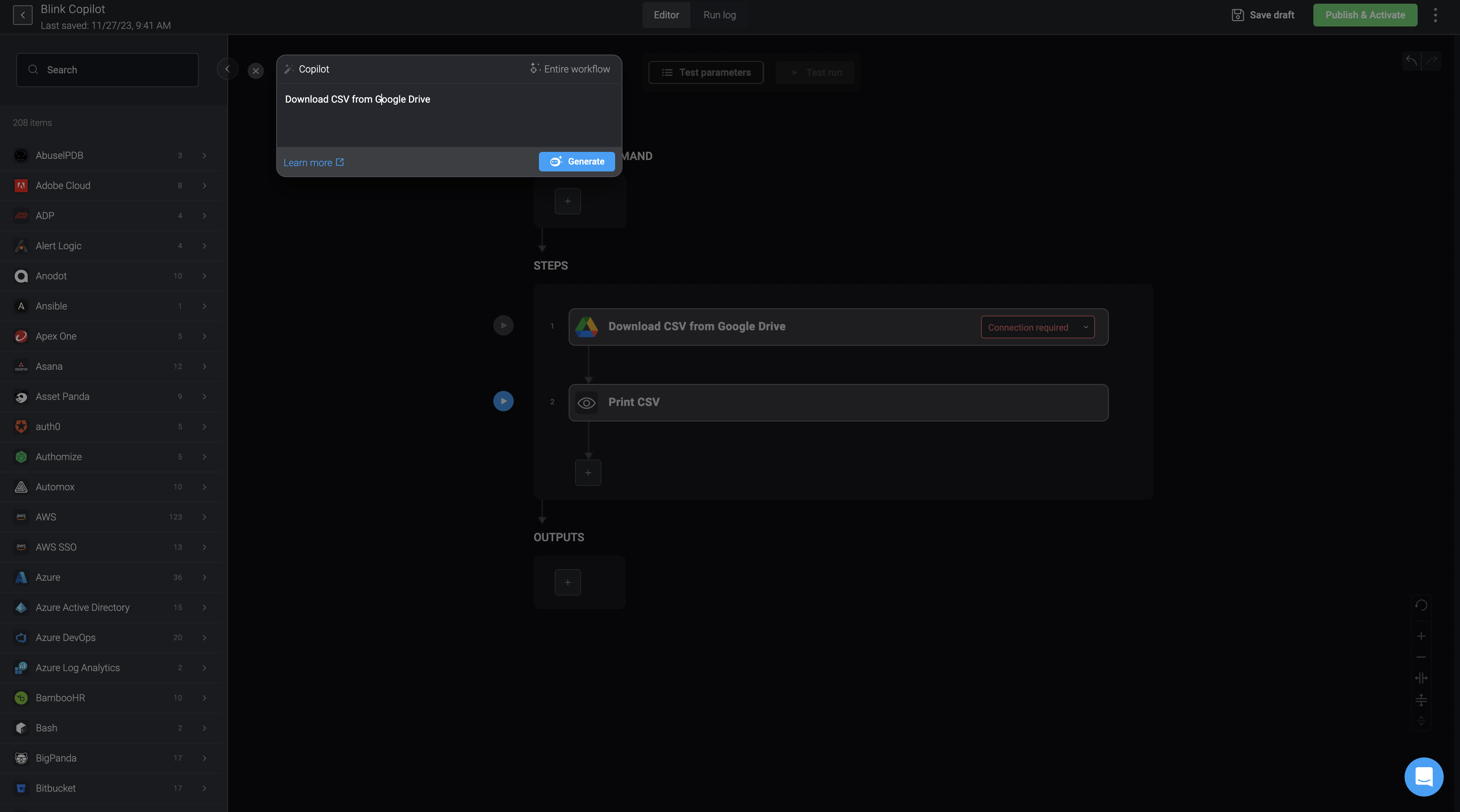
- Once the process is complete,
Blink Copilotwill update your canvas with a recommendation based on your prompt.
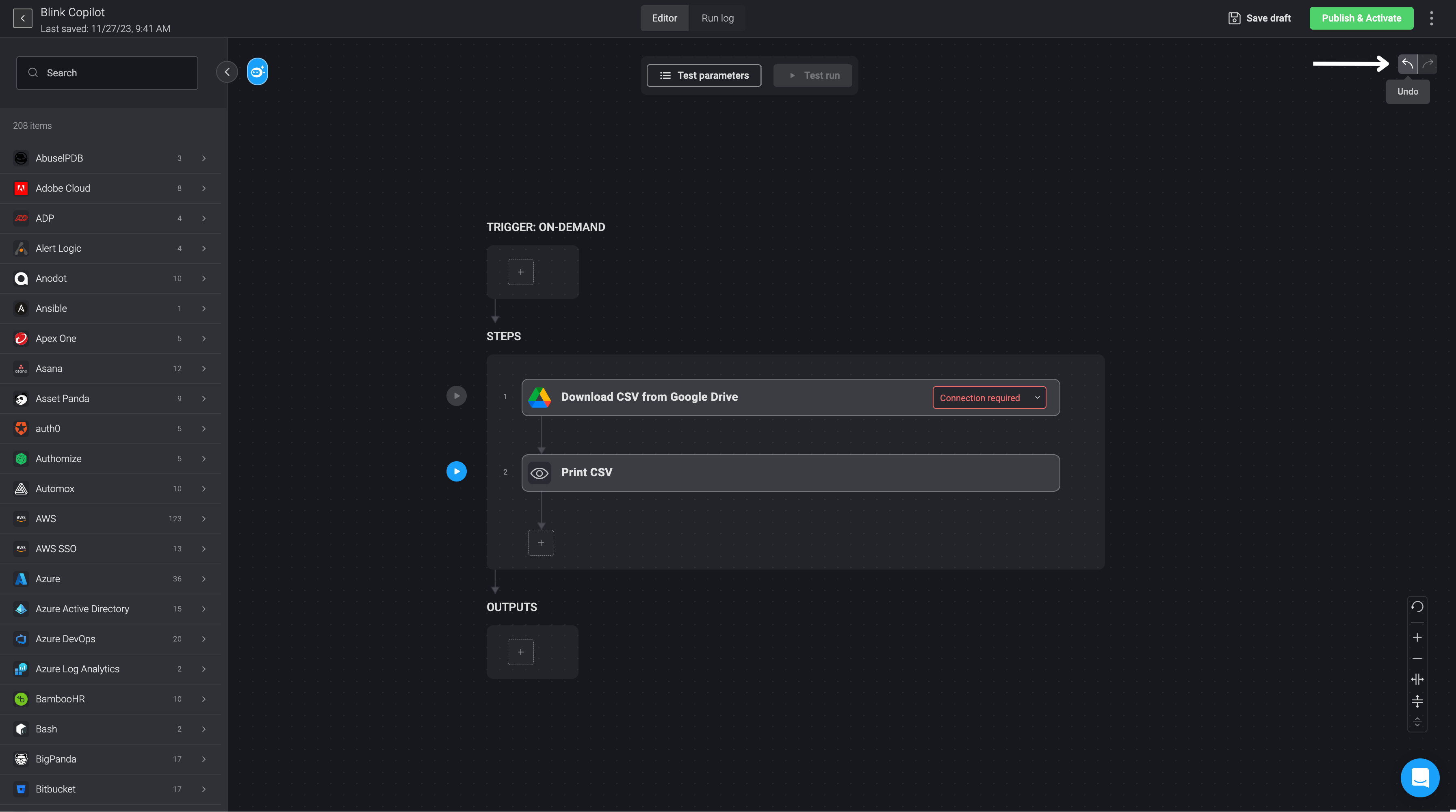
- At any stage you can also undo or redo any changes made by the
Blink Copilotby clicking on the undo or redo arrows in the top-right corner.
- Lastly, you can either makes additional changes to the Workflow that
Blink Copilothas just created or save it to your workspace for future use.