Create a Table
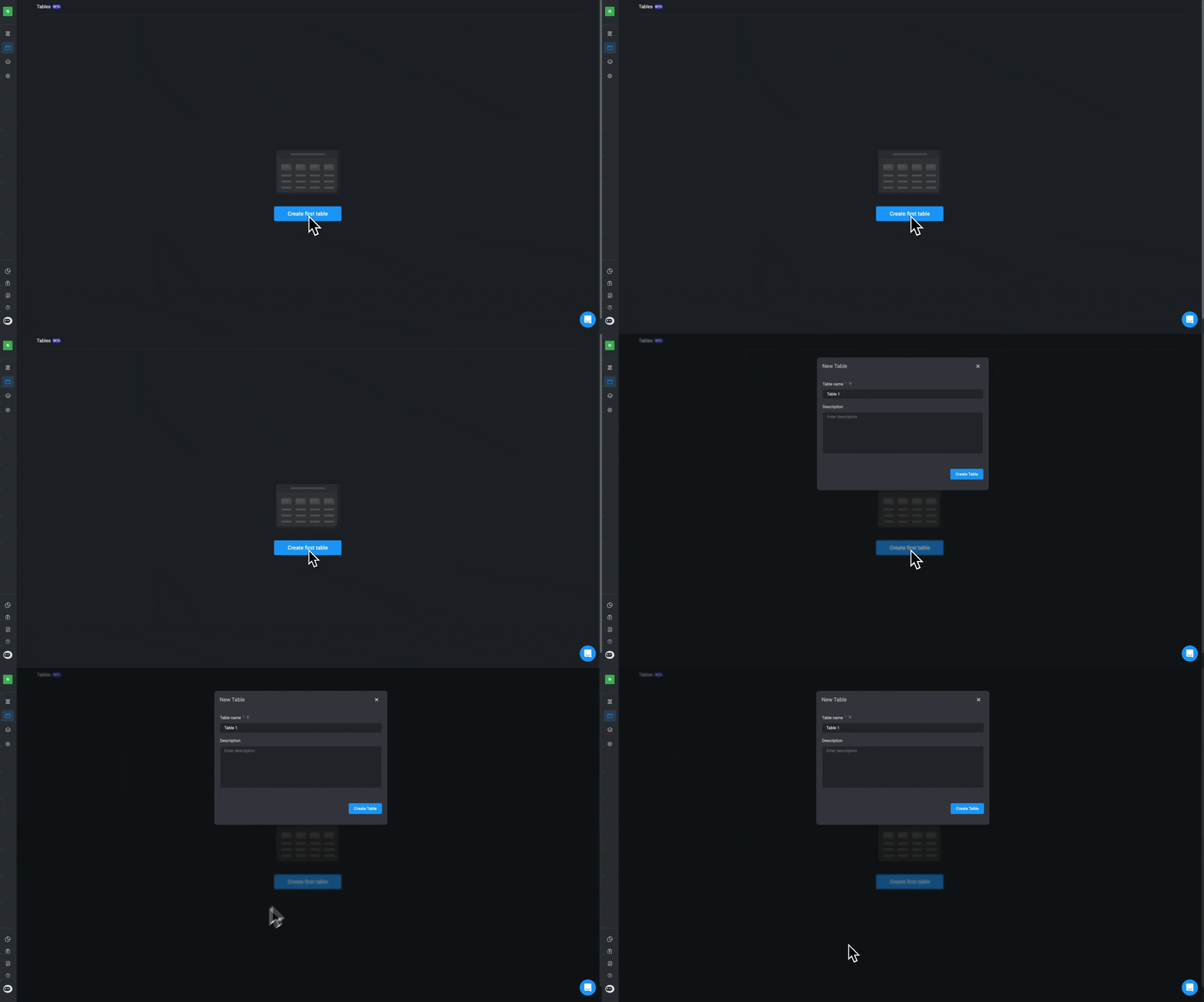
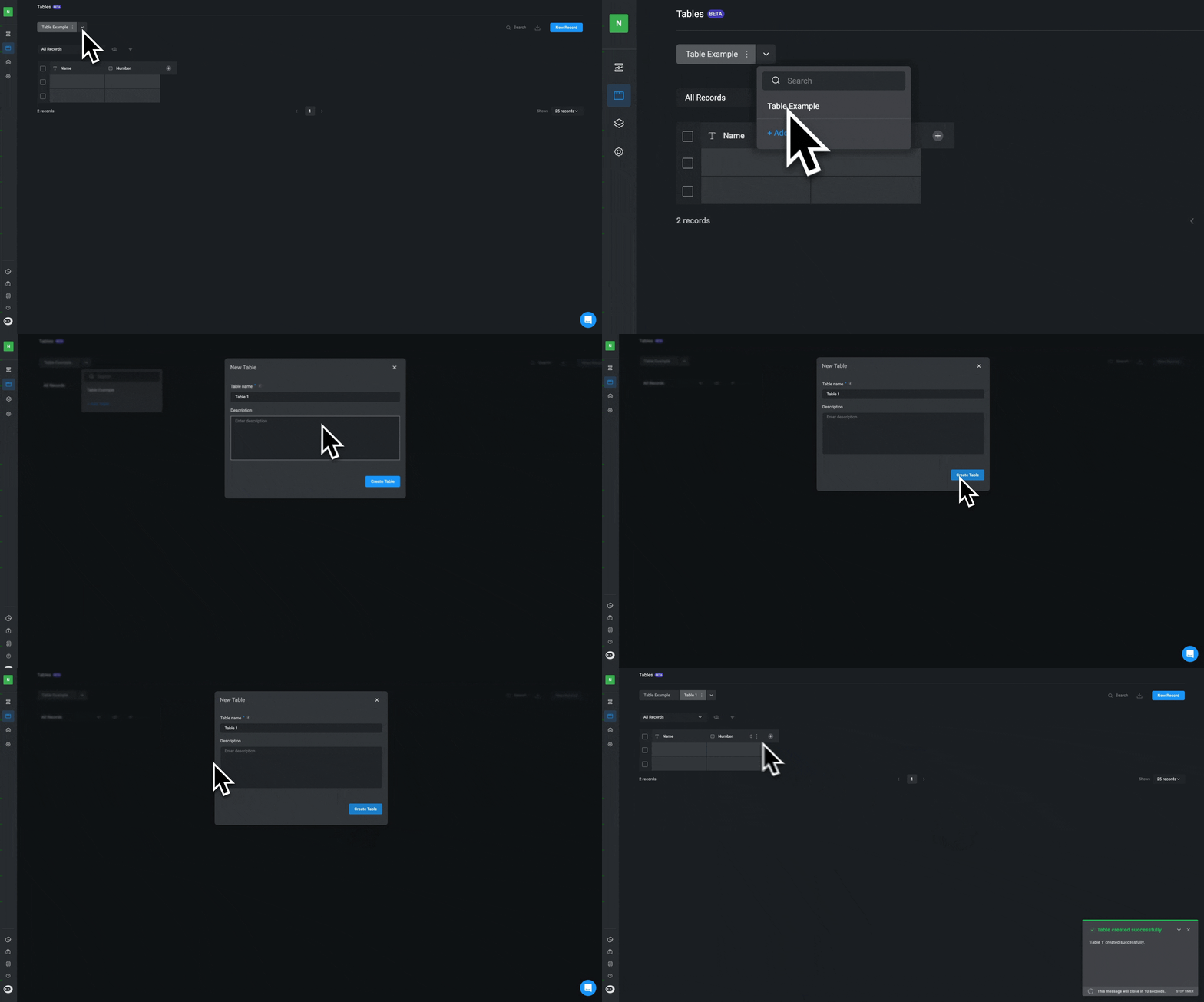
To create your first Blink Table, follow this step-by-step guide:- In your workspace, in the left-hand sidebar select the “Tables” option. Click the “Create first Table” button.
INFOFor additional tables, click on the ‘+’ icon above the existing tables list.
- Fill in the details for your new Table. You can use the default table name or edit it and add a description. Then proceed by clicking the “Create Table” button.
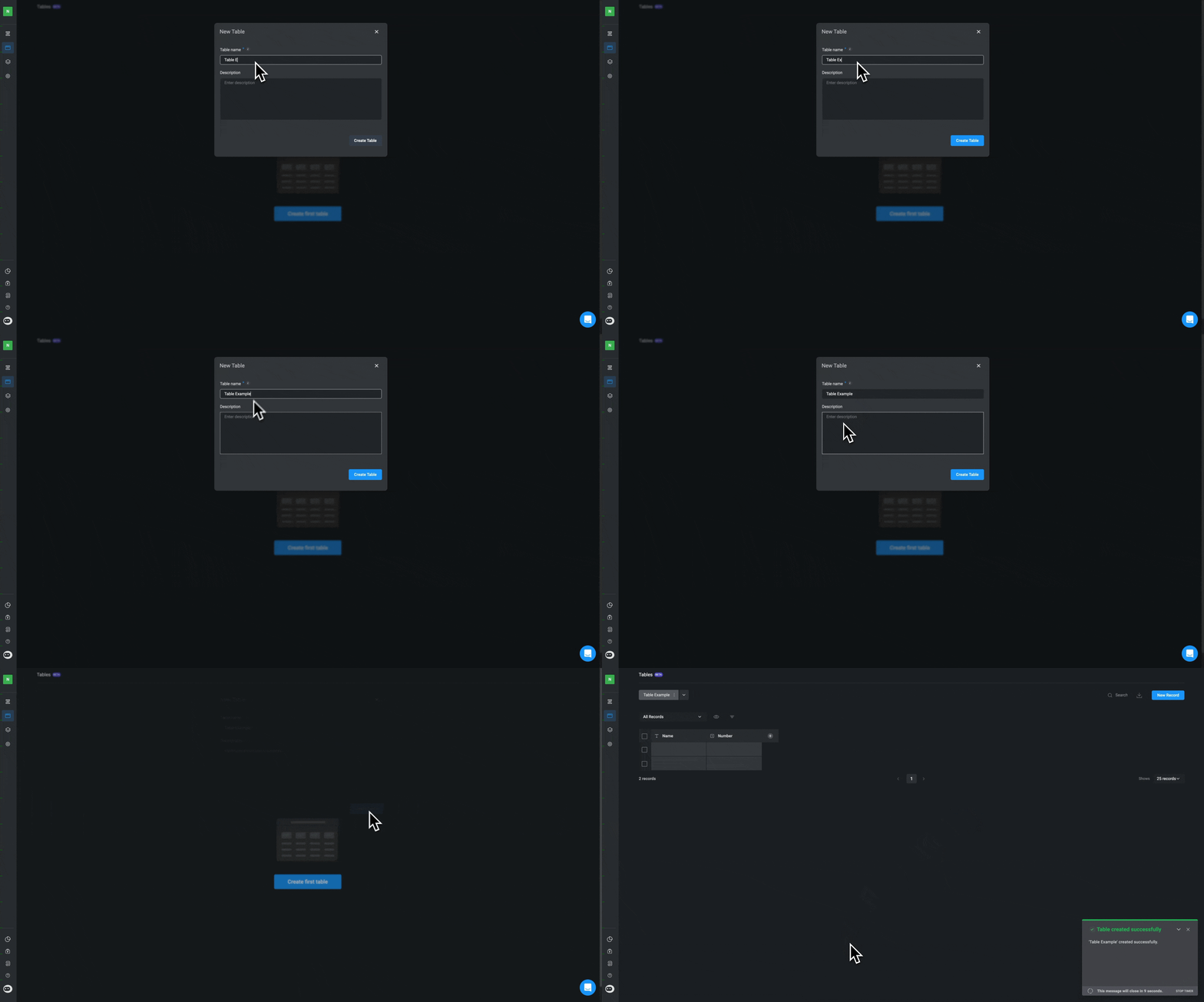
- The newly created Table will be added to the Tables list in the left-hand pane. By default, the Table will include: two fields, one
Texttype, oneNumbertype, and two empty records.
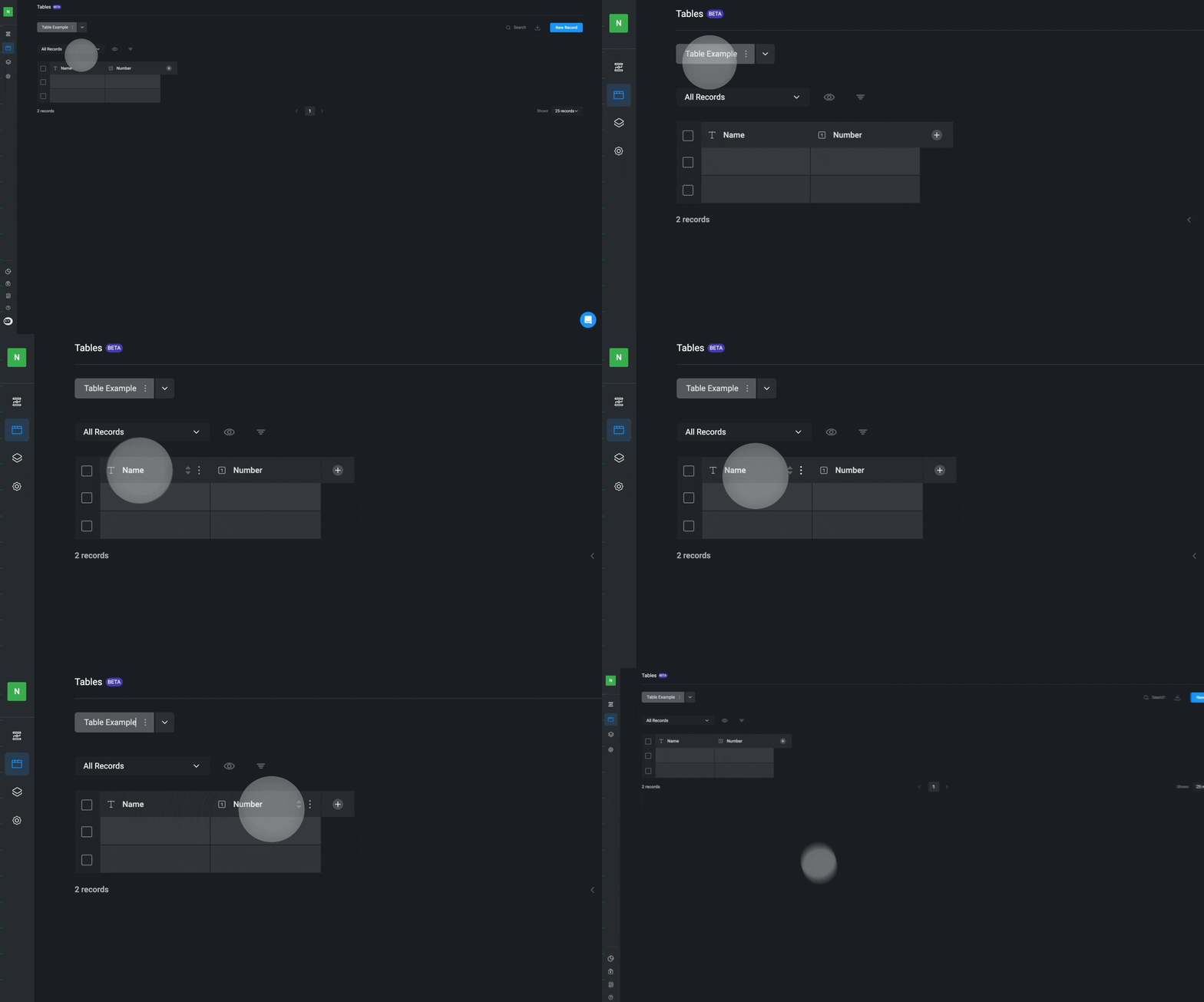
- You can add multiple tables by clicking on the downward facing arrow and selecting Add table. Then, simply input the necessary details for your new table and click Create Table. It will be added to the Tables list in the left-hand pane.
Adding Table Fields
To add fields to a Table, follow this step-by-step guide:- Click on the ’+’ button next to the table field headers.
- Provide a field name, field type , a default value and fill in any advanced parameters. Finish by selecting the create field button.
INFOField type cannot be changed after creation.
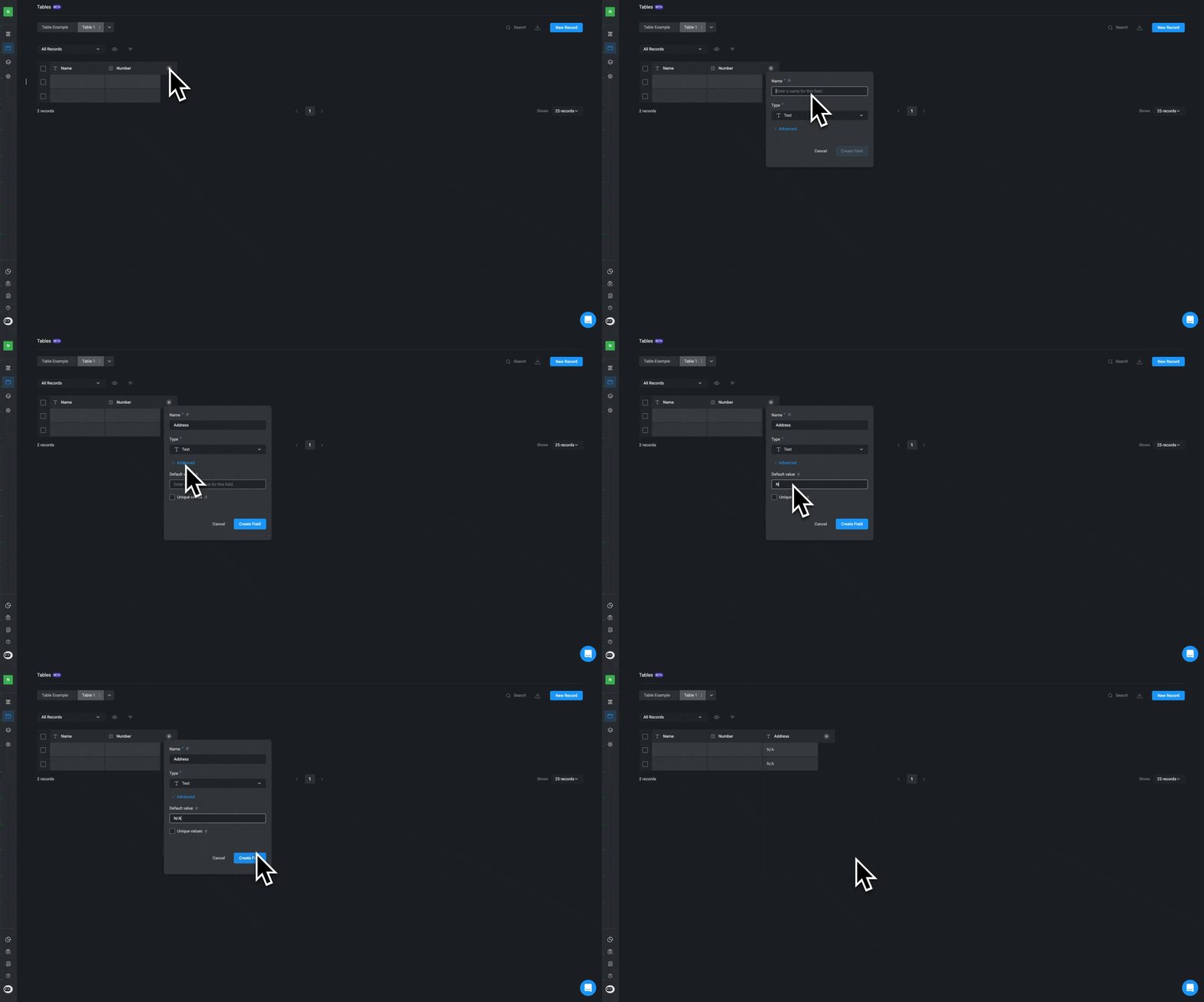
Table Field Types
The following field types are supported:TextLong TextNumberSingle-selectMulti-selectCheckboxDate & TimeUserRisk managementButtonReferenceLists
Table Field Types with Unique Values
This feature ensures that no duplicate values are allowed in a particular column within the table. The Text, Numbers, Users, and Time field types only offer the option to enable unique values option within a column. When adding a table field, you have the option to activate the unique values feature by choosing the advanced option and checking the box next to unique values option. After that, simply click on create field.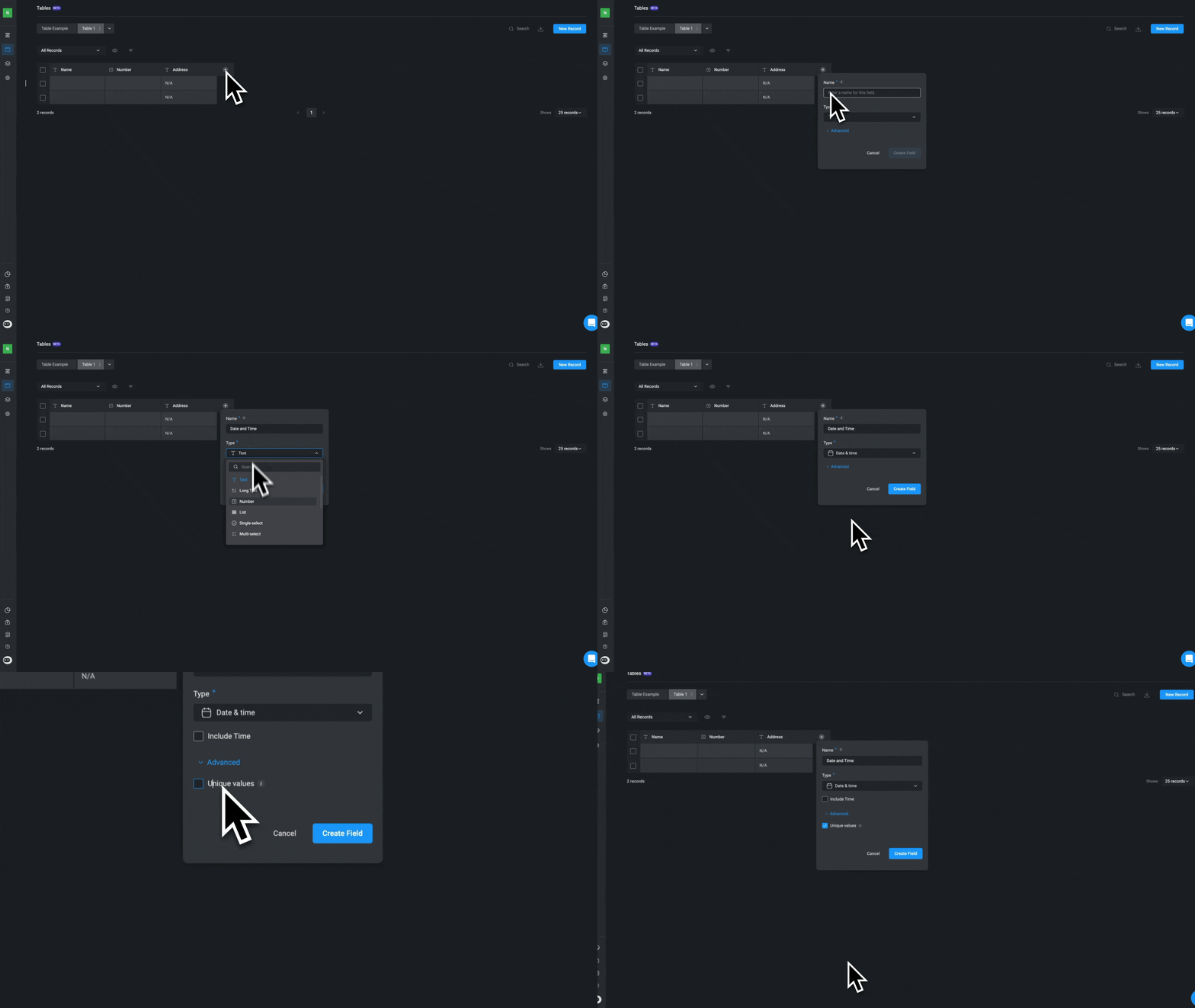
Adding Table Records
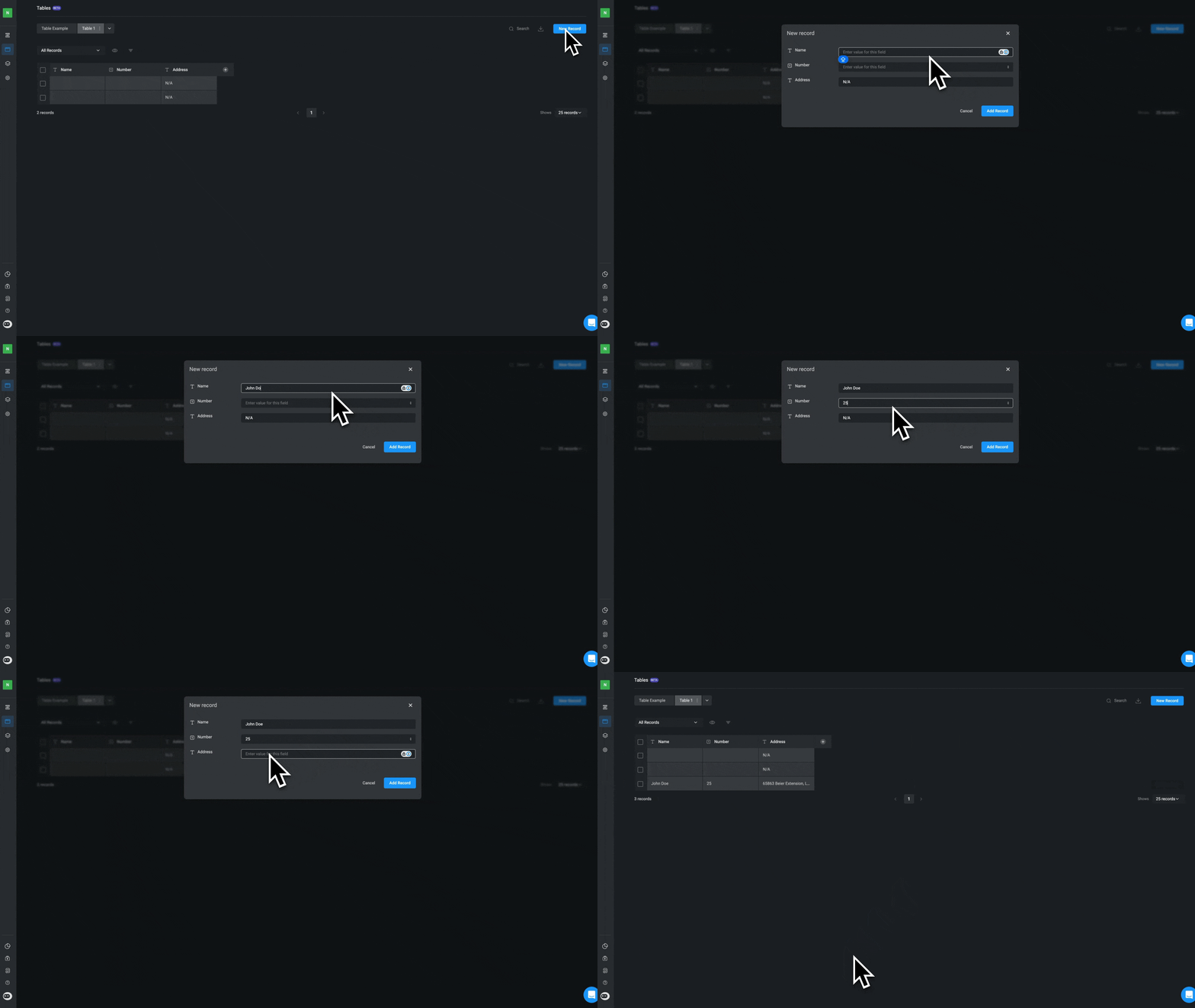
To add records to a Table, follow this step-by-step guide:- Click on the “New Record” button at the top-right corner of the Table
- Enter the data for the new record and then click the “Add Record” button.
- The newly created record will be added to the Table