- Admin Permissions: These permissions grants users full access to all cases including the ability to make any changes to the settings. The Workspace Owner Role grants access to the permissions mentioned.
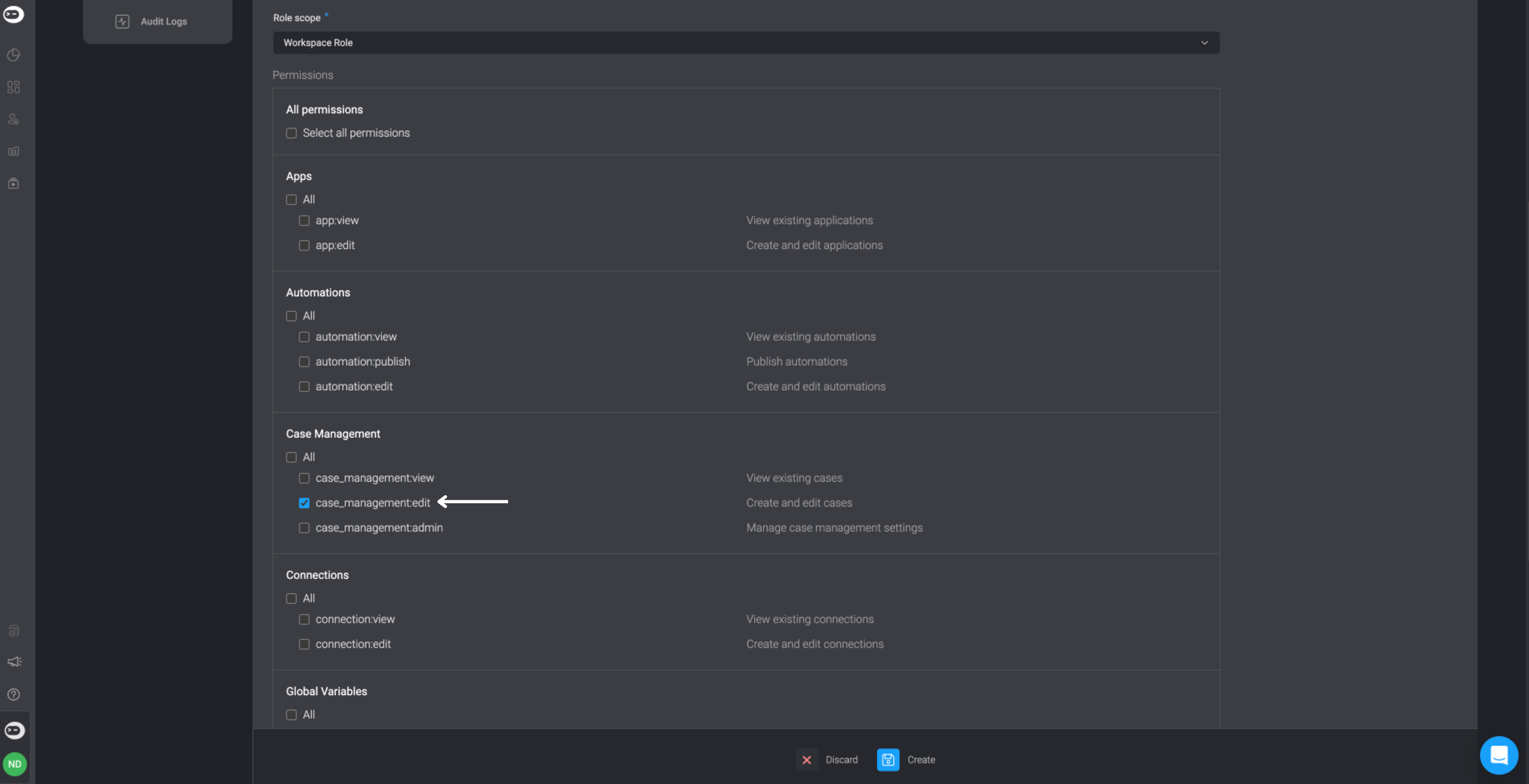
- Editor Permissions: In order to create editor permissions, you need to create a custom workspace role which allows users to create and edit cases while restricting the ability to make changes to settings.
- Viewer Permissions: These permissions allows user to only observe existing cases without the ability to edit or create them. The Workspace Viewer Role grants access to the permissions mentioned.
Creating a Case Management Editor Role
- Navigate to the Roles Tab under User Settings and in the top-right corner, click on New Role button in the top right-corner.
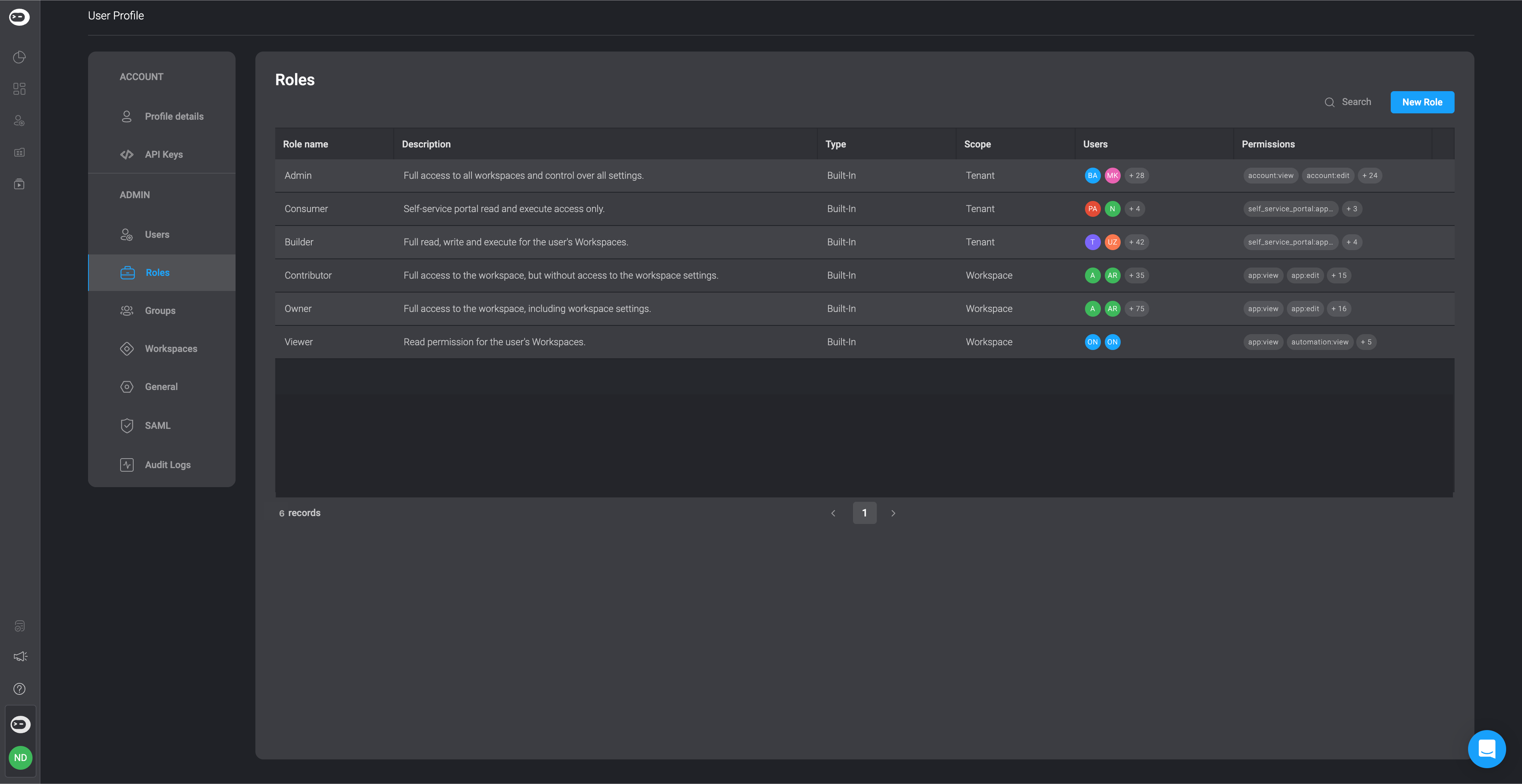
- A dialogue box will open, displaying all user role permissions.
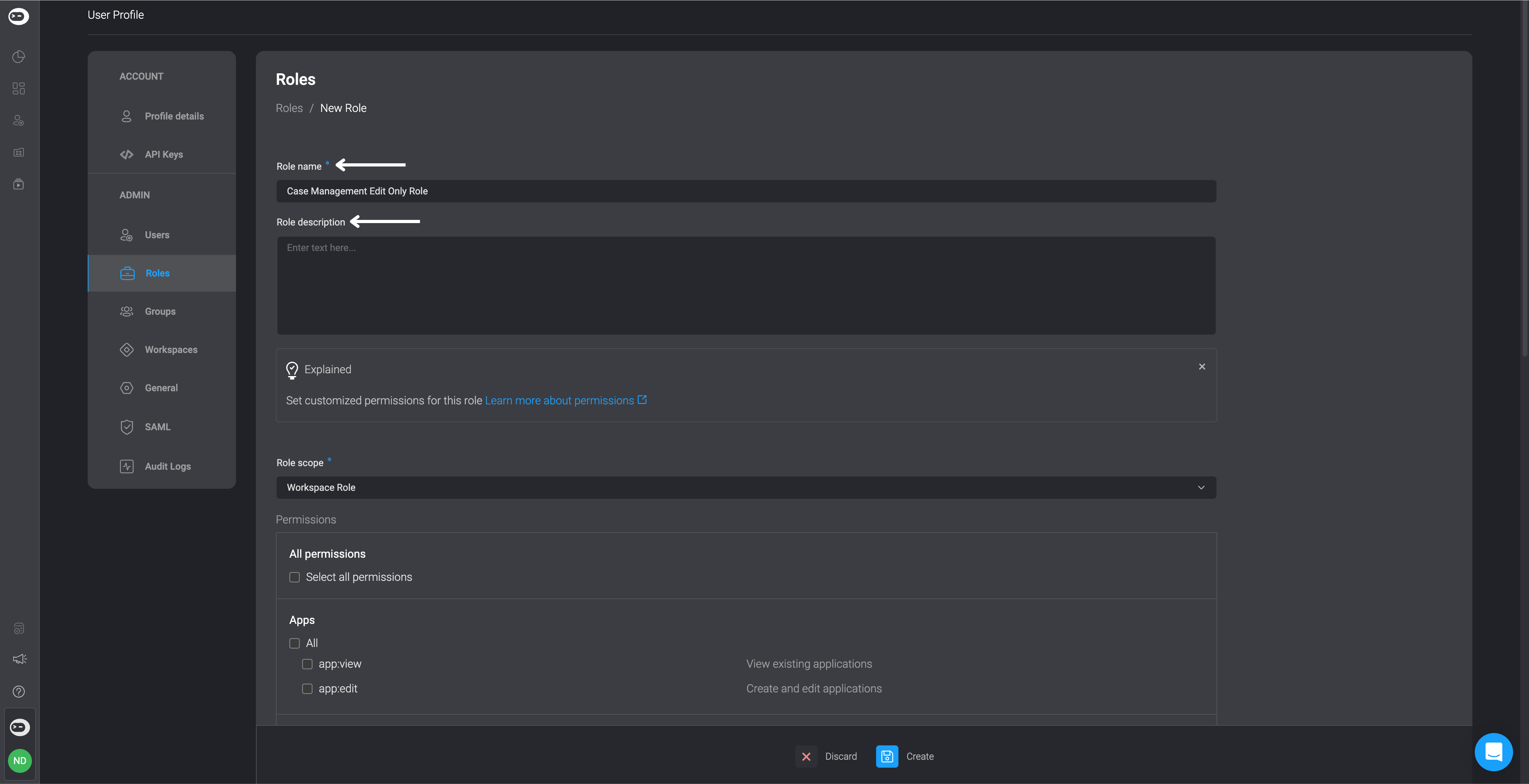
- Add a Role Name and a Role Description.
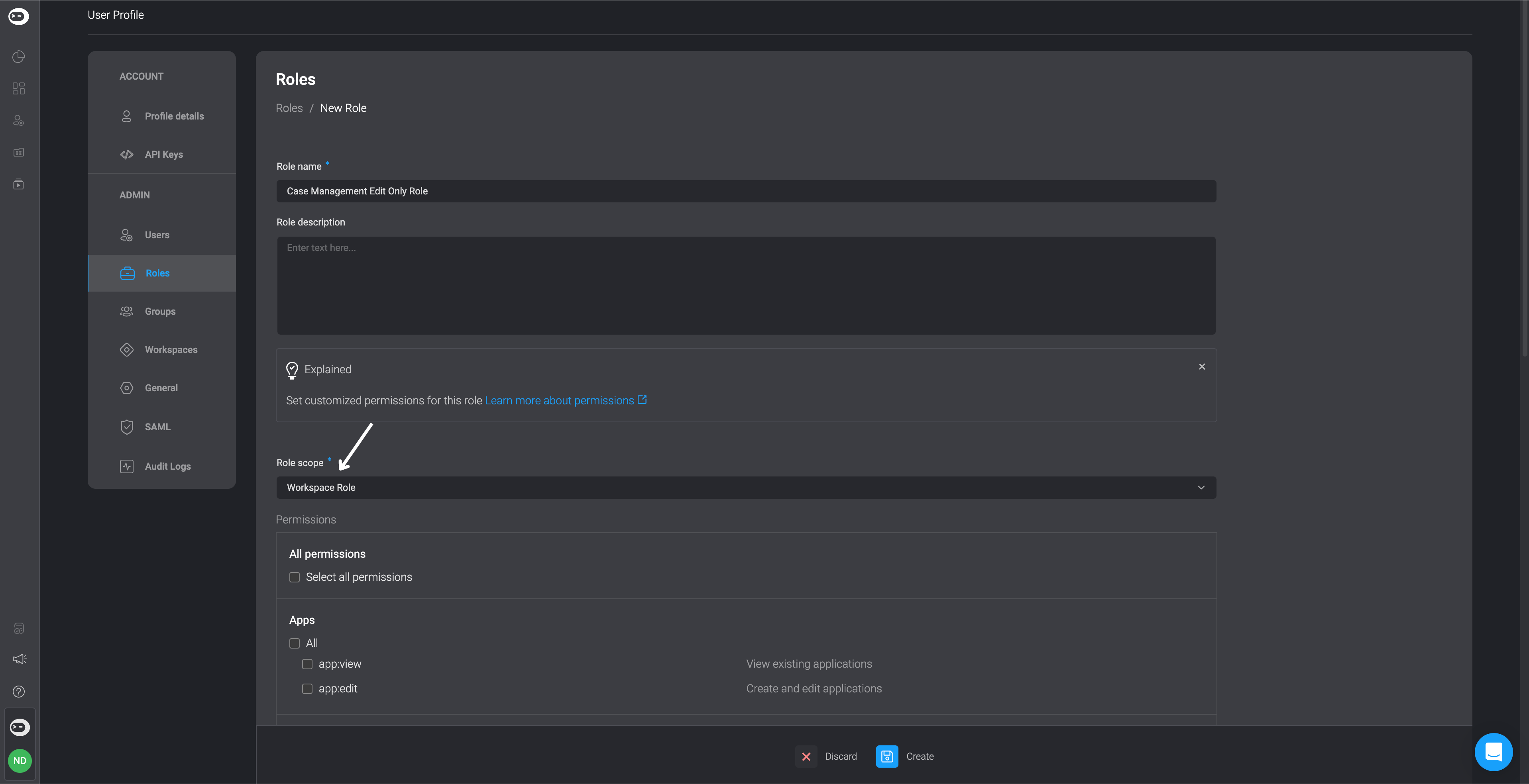
- Select the Workspace Role option under the Role Scope section.
- Then, select the checkbox next to case_management:edit under the Case Management section and select the checkbox next to workspace:edit under the Workspace section to customize the editor permissions. Then click the create icon.