

Creating an Adobe Cloud connection
To create the connection you need:- A client ID
- A client secret
- An organization ID
- A technical account ID
- A private key
Obtaining the credentials
- Login to your Adobe Cloud Developer account.
- Navigate to the Adobe Cloud Developer console page.
-
Click Create New Project.
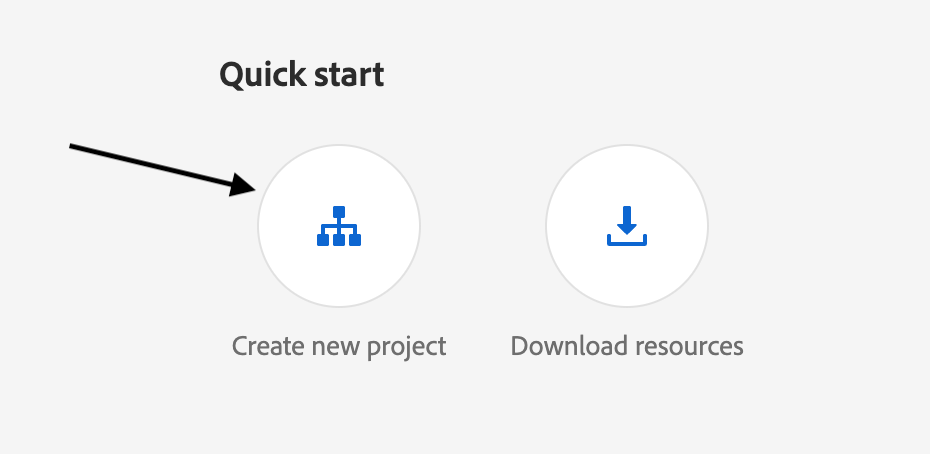
-
Click Add API
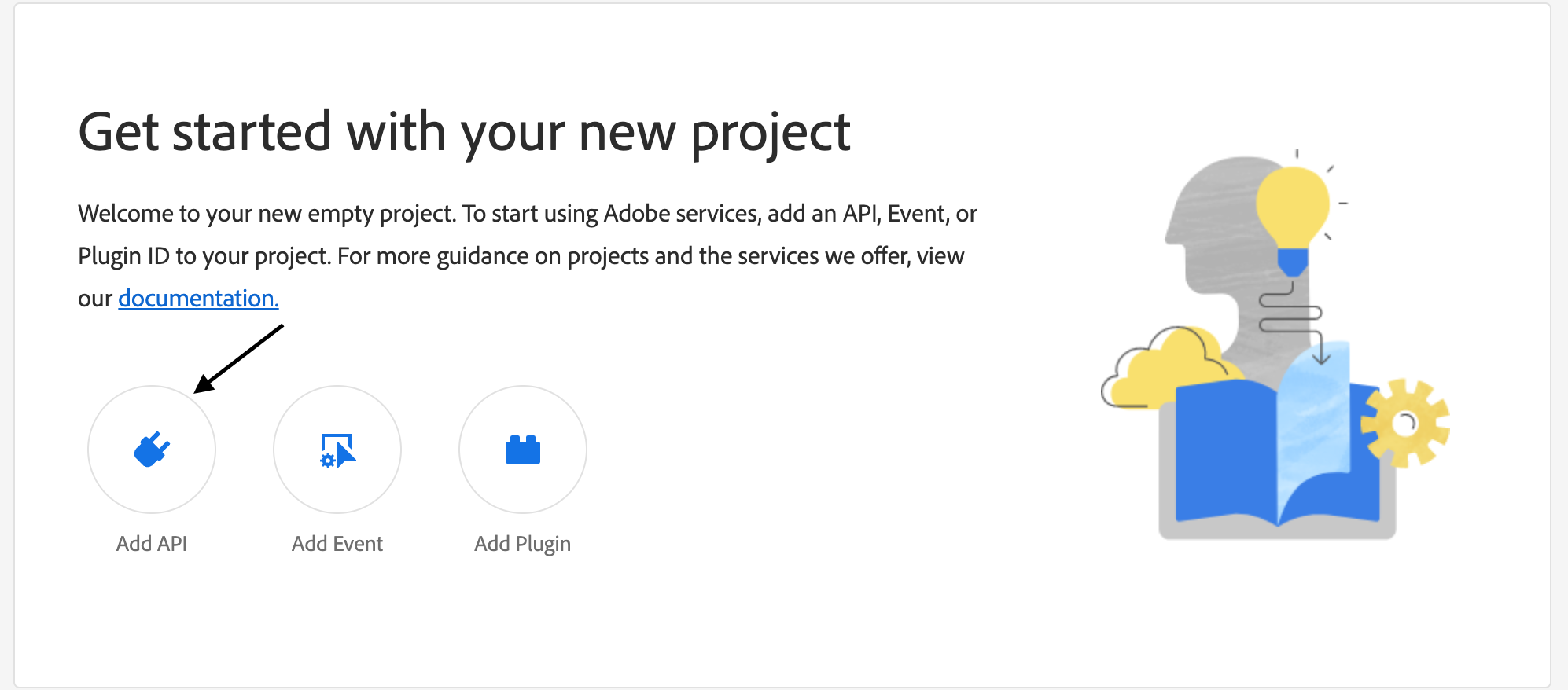
-
Choose the User Management API
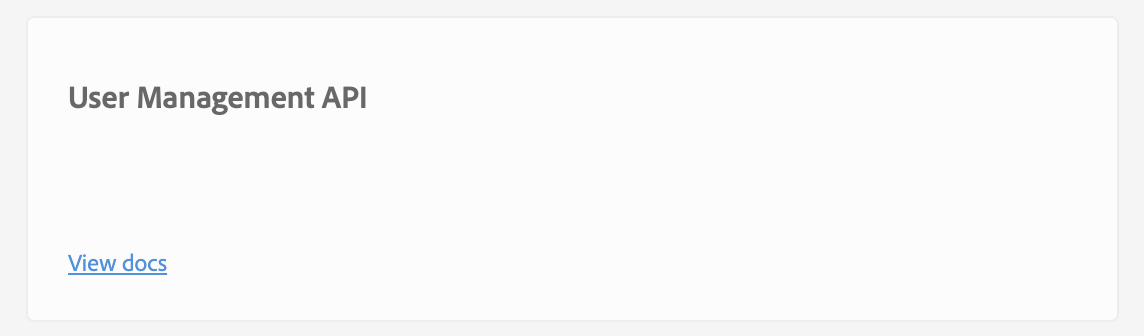
-
Click Generate a key pair, and in the end click Generate keypair
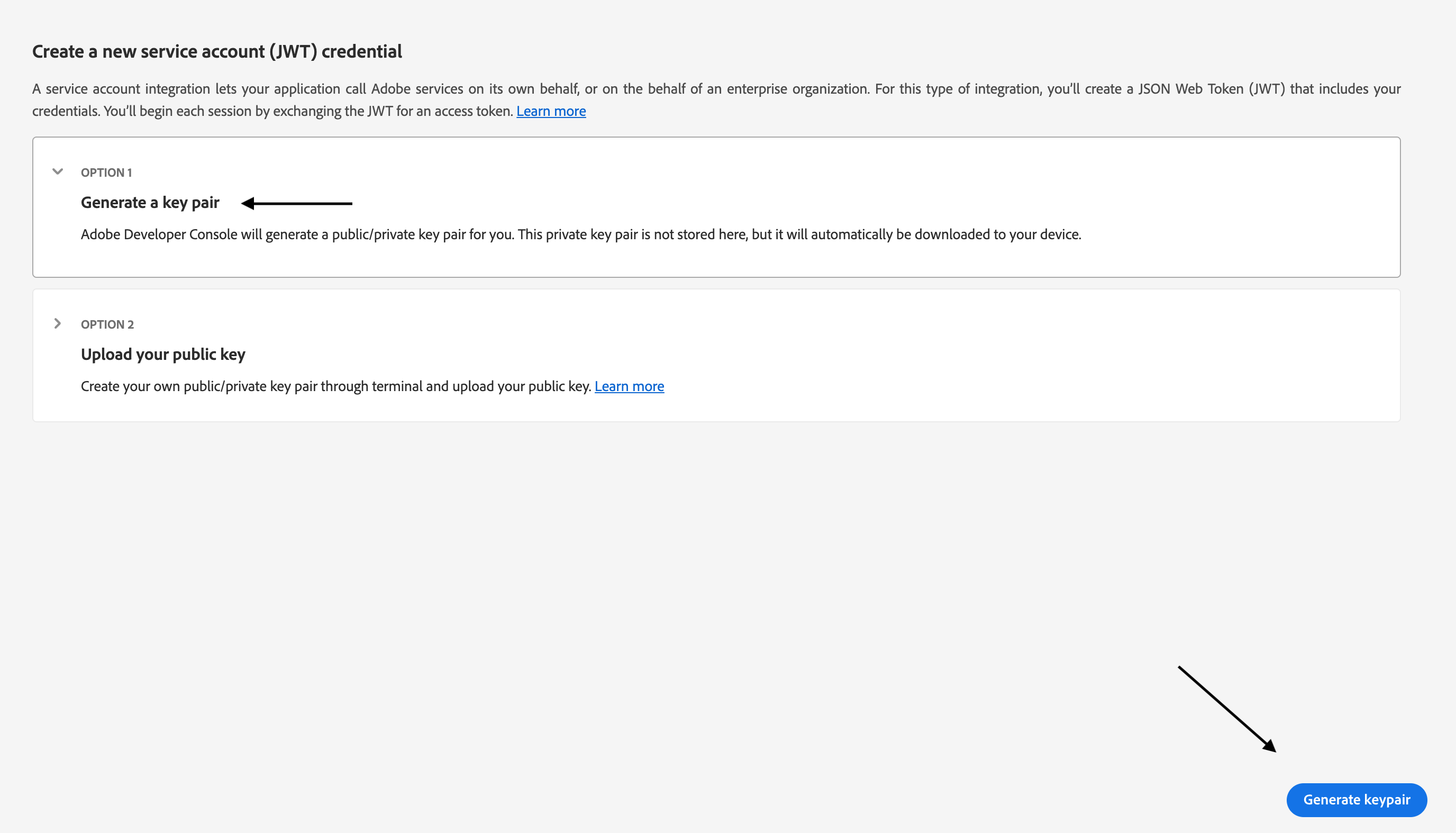
- Once the private key pair was generated, navigate back to the Project page and click on the project you’ve created
-
Click Service Account
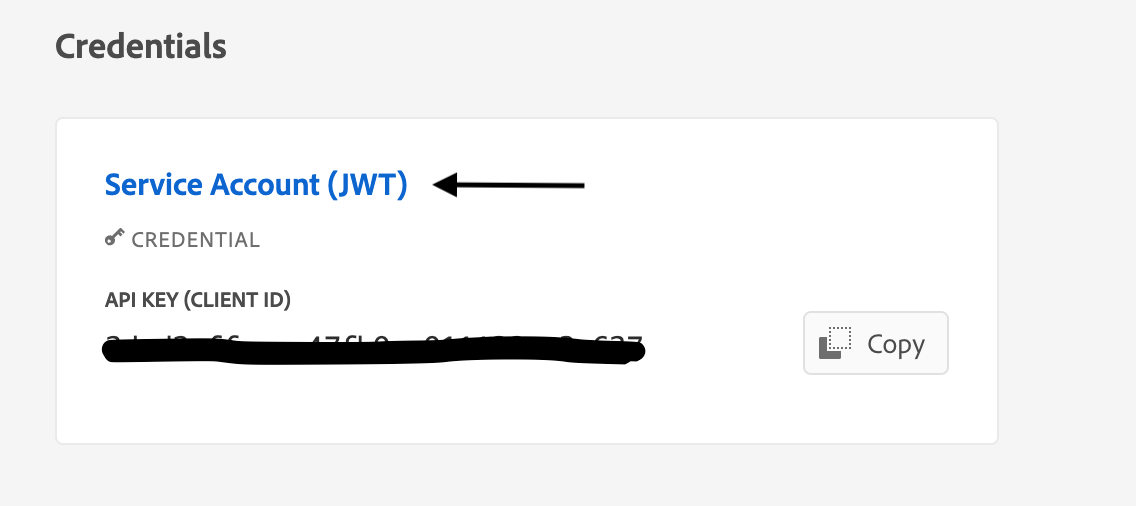
-
Copy the specified credentials
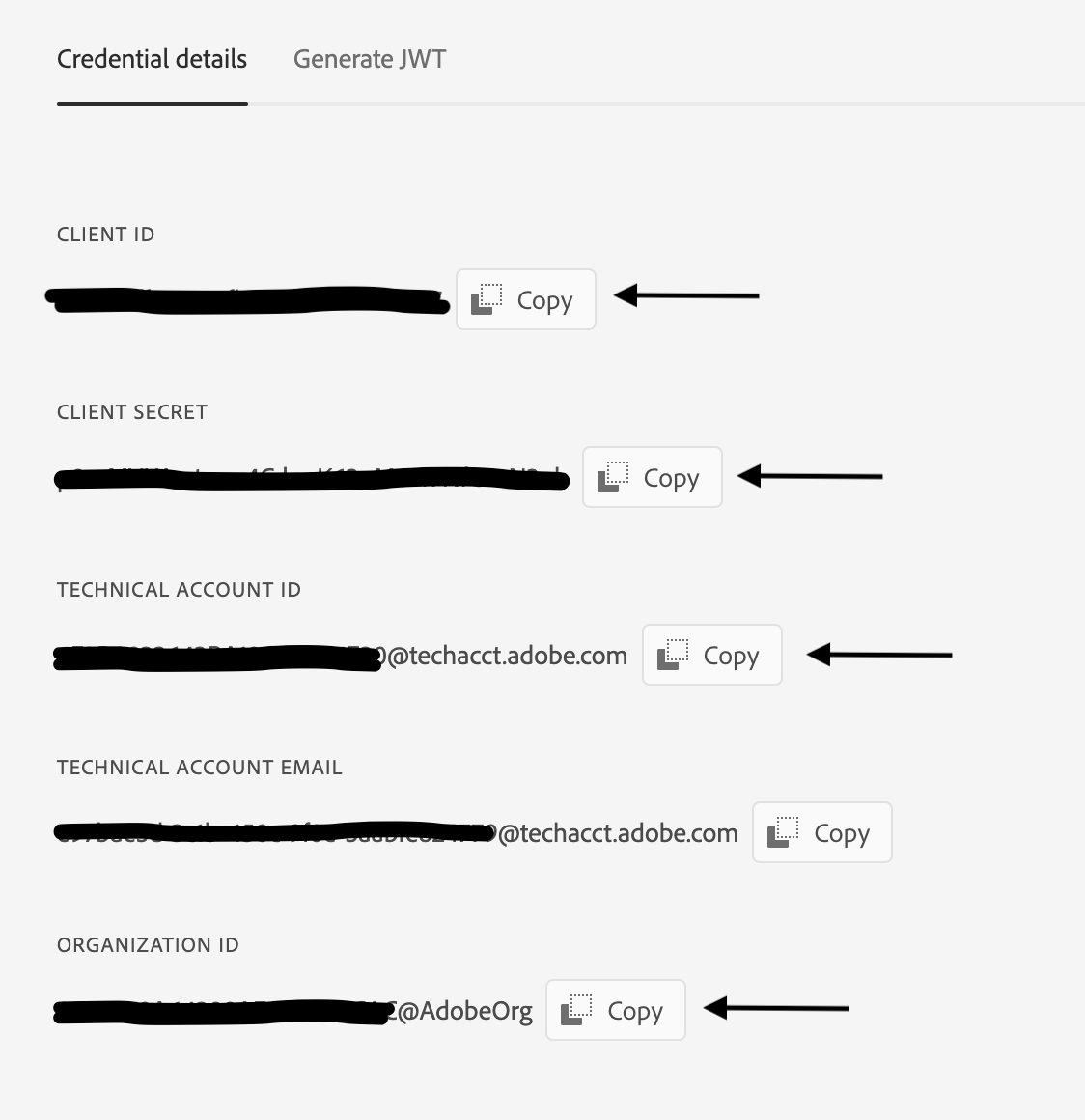 Don’t forget to copy the private key that was generated in step number 7.
Creating your connection
- In the Blink platform, navigate to the Connections page > Add connection. A New Connection dialog box opens displaying icons of external service providers available.
- Select the Adobe Cloud icon. A dialog box with name of the connection and connection methods appear.
- (Optional) Edit the name of the connection. At a later stage you cannot edit the name.
- Select Access Token as the method to make the connection.
-
Fill in the parameters:
- The client ID
- The client secret
- The organization ID
- The technical account ID
- The private key
- (Optional) Click Test Connection to test it.
- Click Create connection. The new connection appears on the Connections page.