

Creating an Azure Log Analytics connection
Create the connection by using one of the following methods:Using OAuth
Creating your connection
- In the Blink platform, navigate to the Connections page > Add connection. A New Connection dialog box opens displaying icons of external service providers available.
- Select the Azure Log Analytics icon. A dialog box with name of the connection and connection methods appears.
- (Optional) Edit the name of the connection. At a later stage you cannot edit the name.
- Click Azure to authenticate using OAuth.
- Sign in using your credentials.
Need admin approval? please refer to the Need Admin
Approval guide.
Using App Registration
To create the connection you need:- A Client ID
- A Client Secret
- A Tenant ID
Obtaining the credentials
- Log into the Azure Portal.
-
Go to the Microsoft Entra ID resource.

-
In the left-hand menu, click App registrations.

-
Create a new application registration or click on one of your existing applications.

-
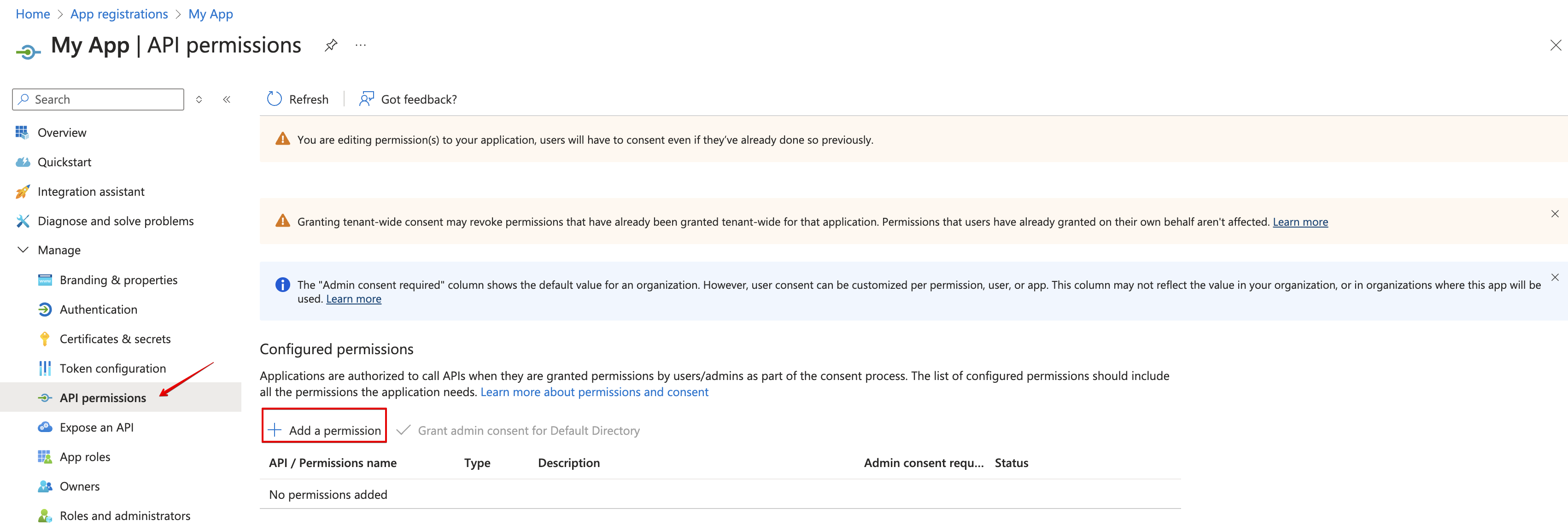
On the left-hand menu, click API permissions > Add a permission.
-
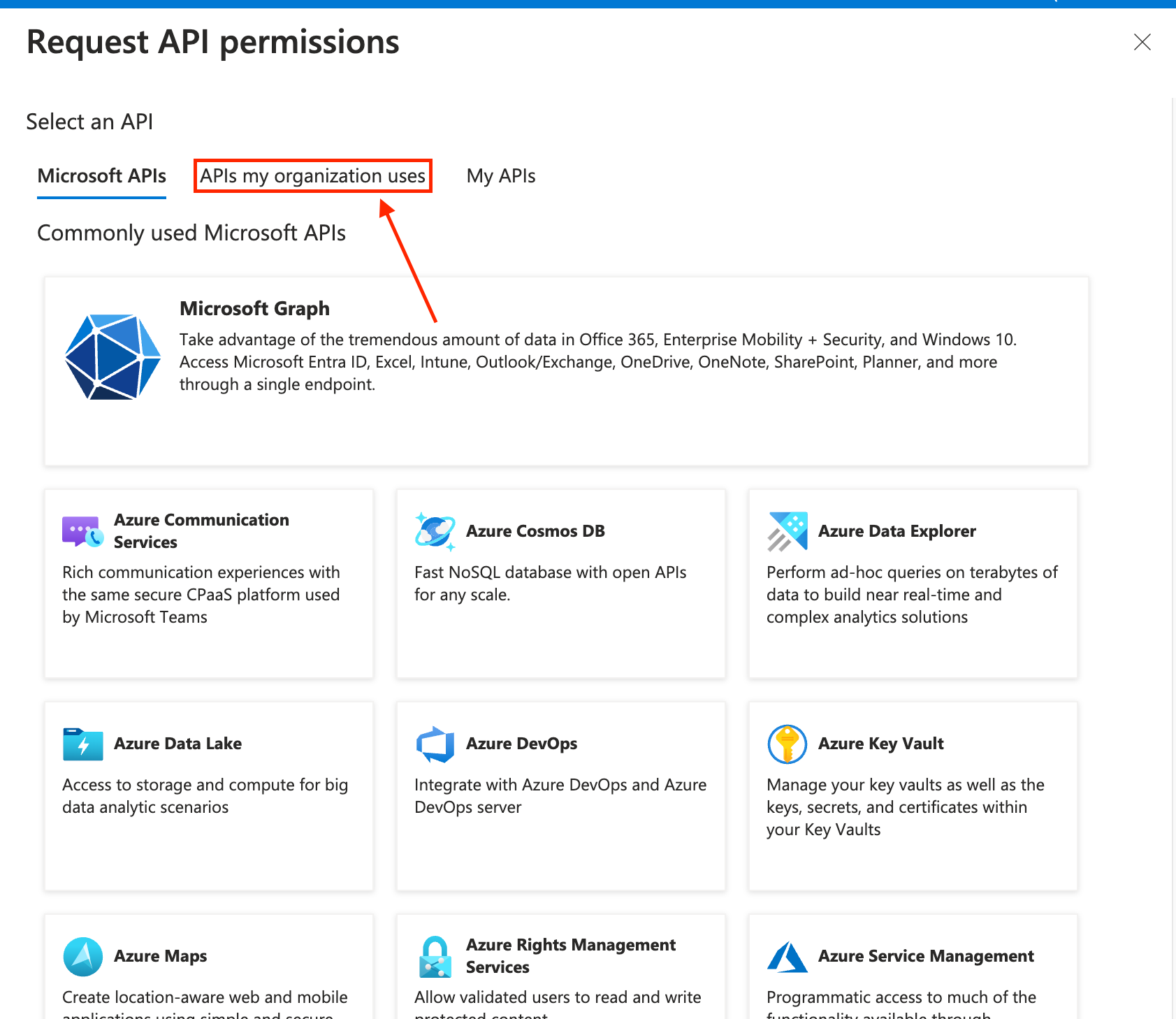
Go to the APIs My Organization Uses section.
-
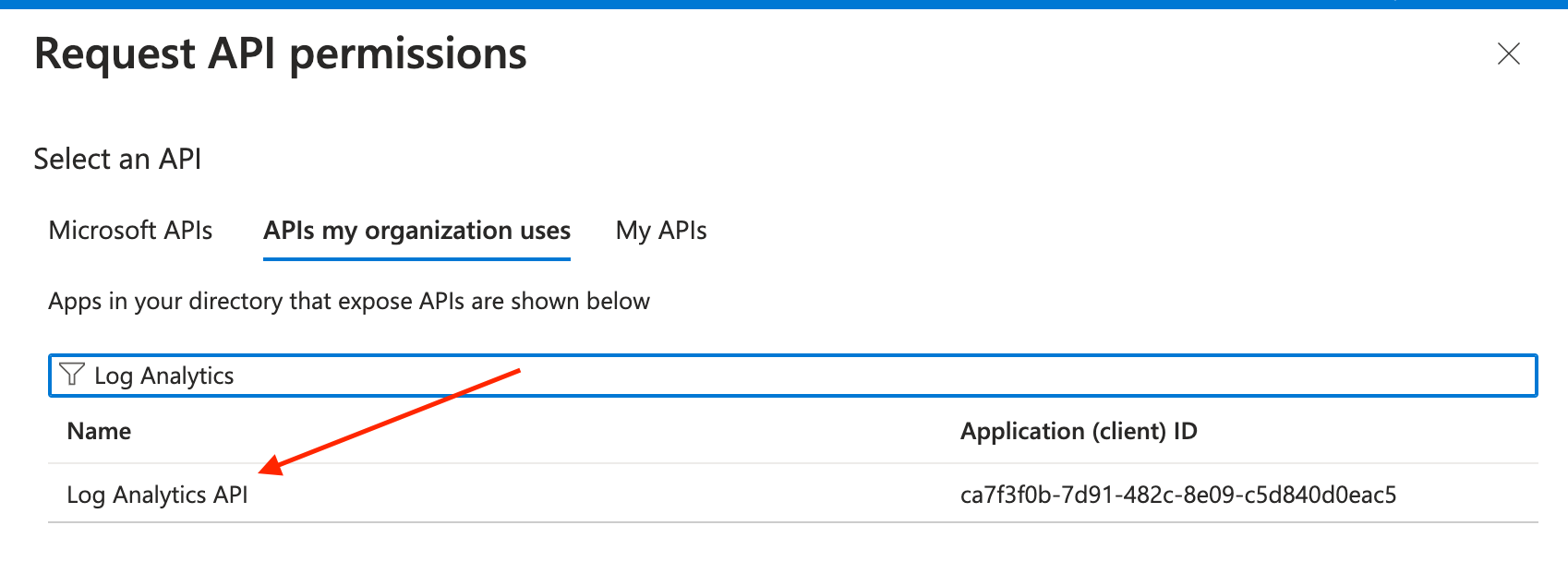
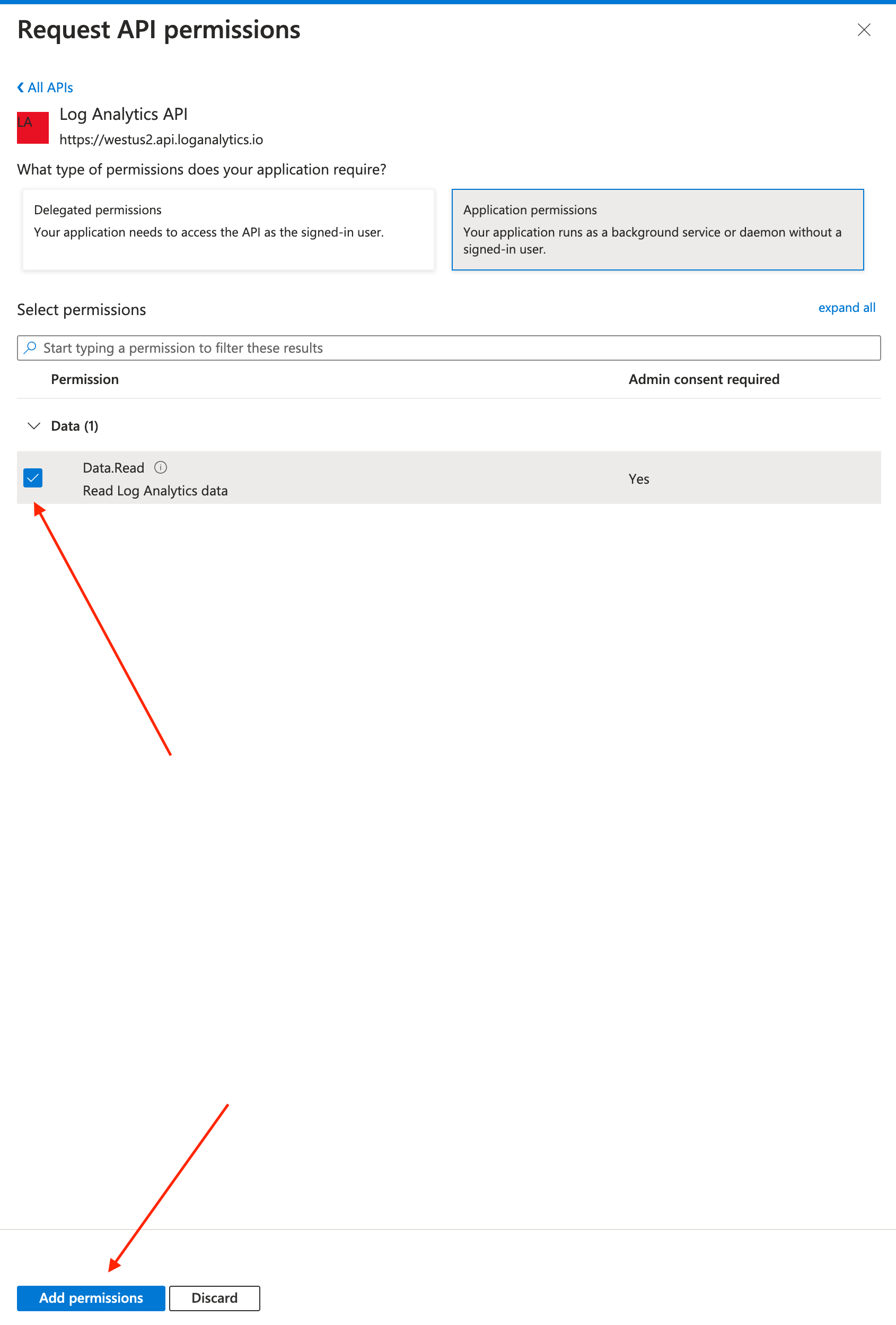
Click on Log Analytics API. You can use the search bar in order to filter the results.
-
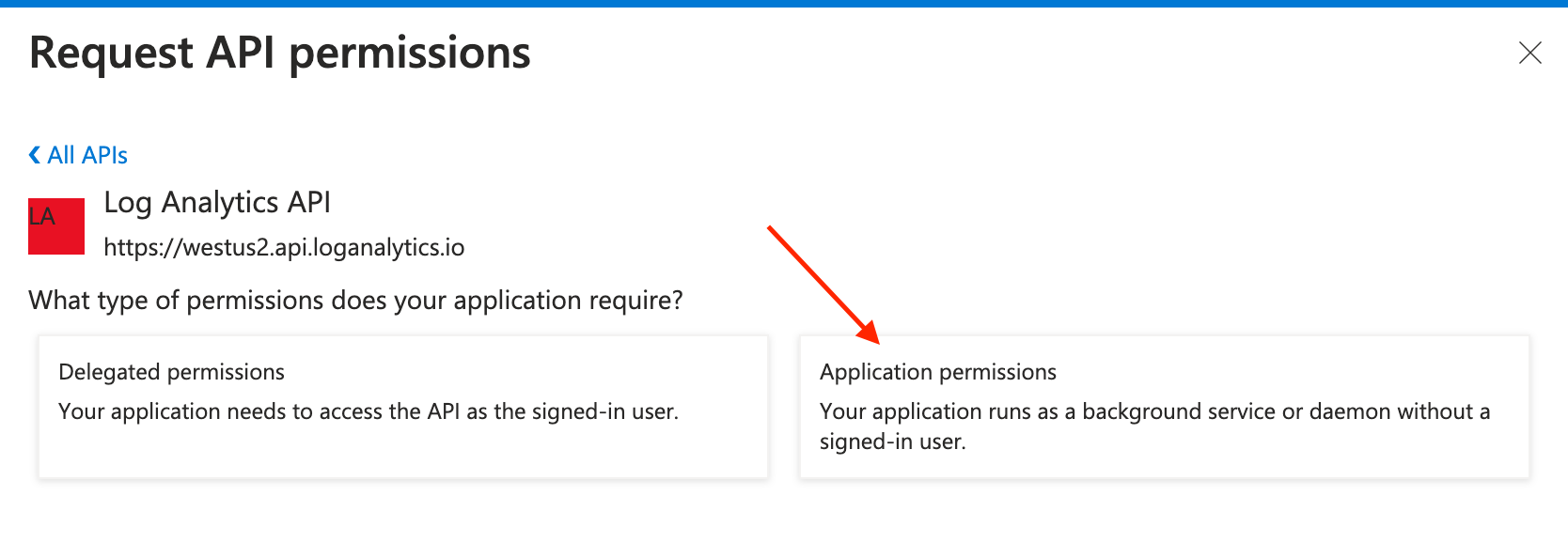
Choose Application Permissions.
-
Enable Data.Read permission and click on Add Permissions.
-
Click Grant admin consent for
<your tenant>on the API permissions page. Only admins can grant consent.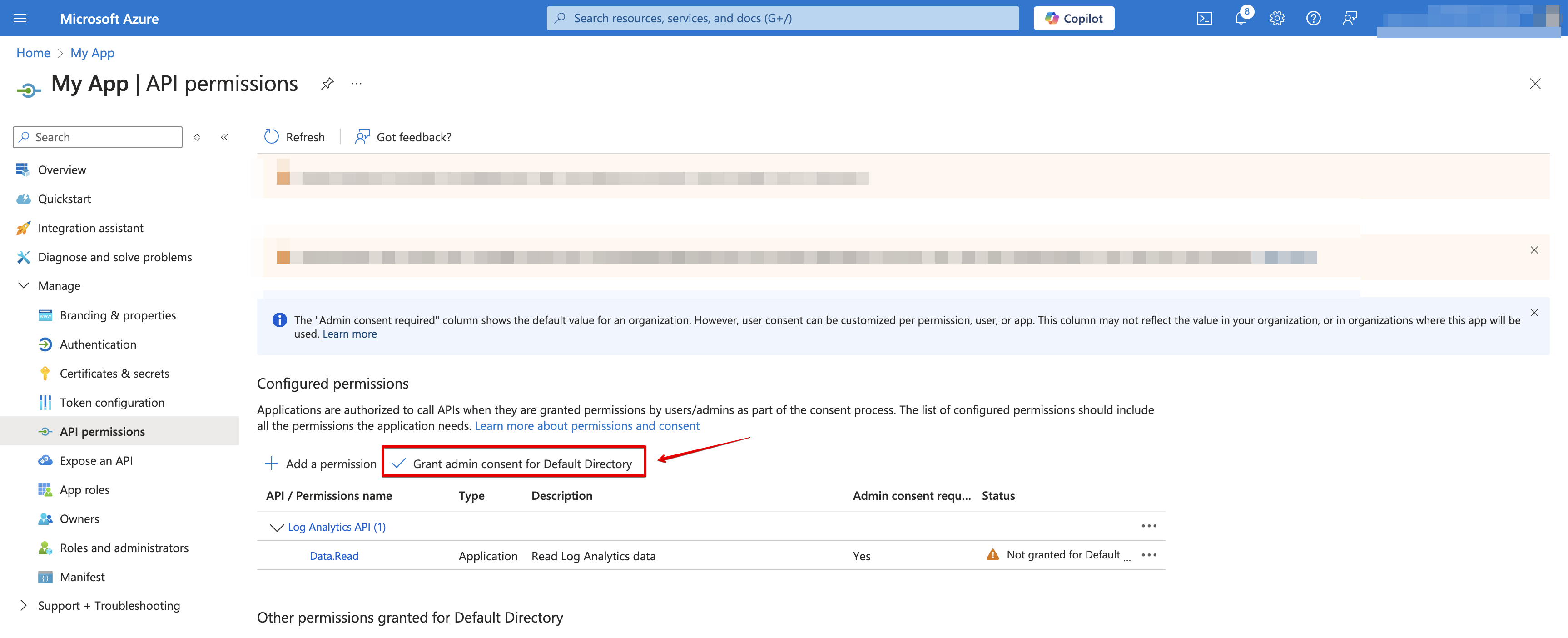
-
Confirm that the added permissions are now verified.

-
Navigate to Overview and Copy your client ID and tenant ID.

-
Create a new client secret.

-
Copy the secret value.

Creating your connection
- In the Blink platform, navigate to the Connections page > Add connection. A New Connection dialog box opens displaying icons of external service providers available.
- Select the Azure Log Analytics icon. A dialog box with name of the connection and connection methods appear.
- (Optional) Edit the name of the connection. At a later stage you cannot edit the name.
- Select App Registration as the method to create the connection.
-
Fill in the parameters:
- The Client ID (Application ID)
- The Client Secret
- The Tenant ID (Directory ID)
- (Optional) Click Test Connection to test it.
- Click Create connection. The new connection appears on the Connections page.