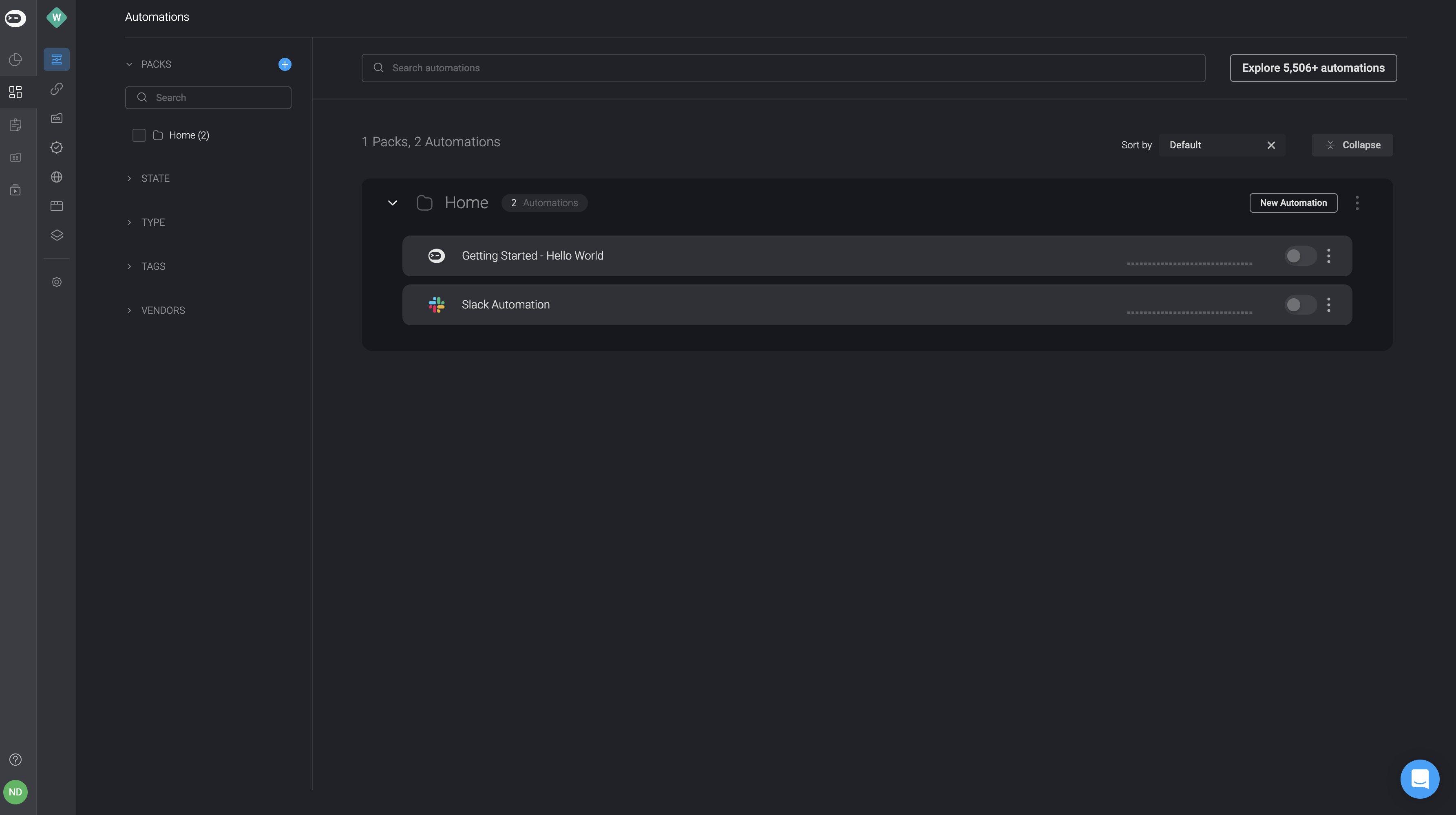
- Click on the three dots button in the top-right corner of the automation pack and select the move/copy option.
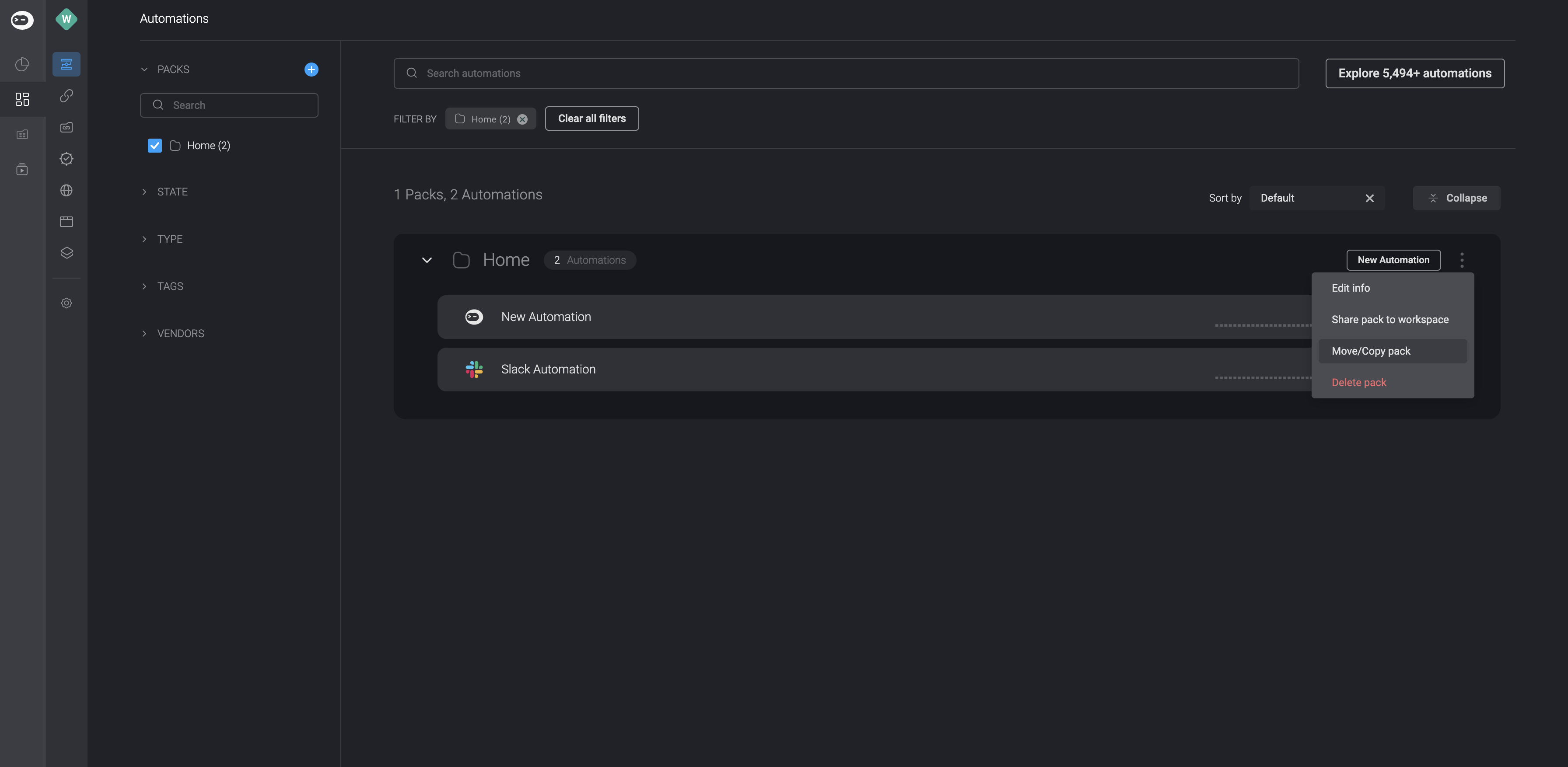
- This will open the Copy/Move wizard, where you can select which workspace you want to Copy/Move the pack to. First select the workspace, then select the target pack, and choose whether you wish to Copy or Move the selected pack to the target workspace.
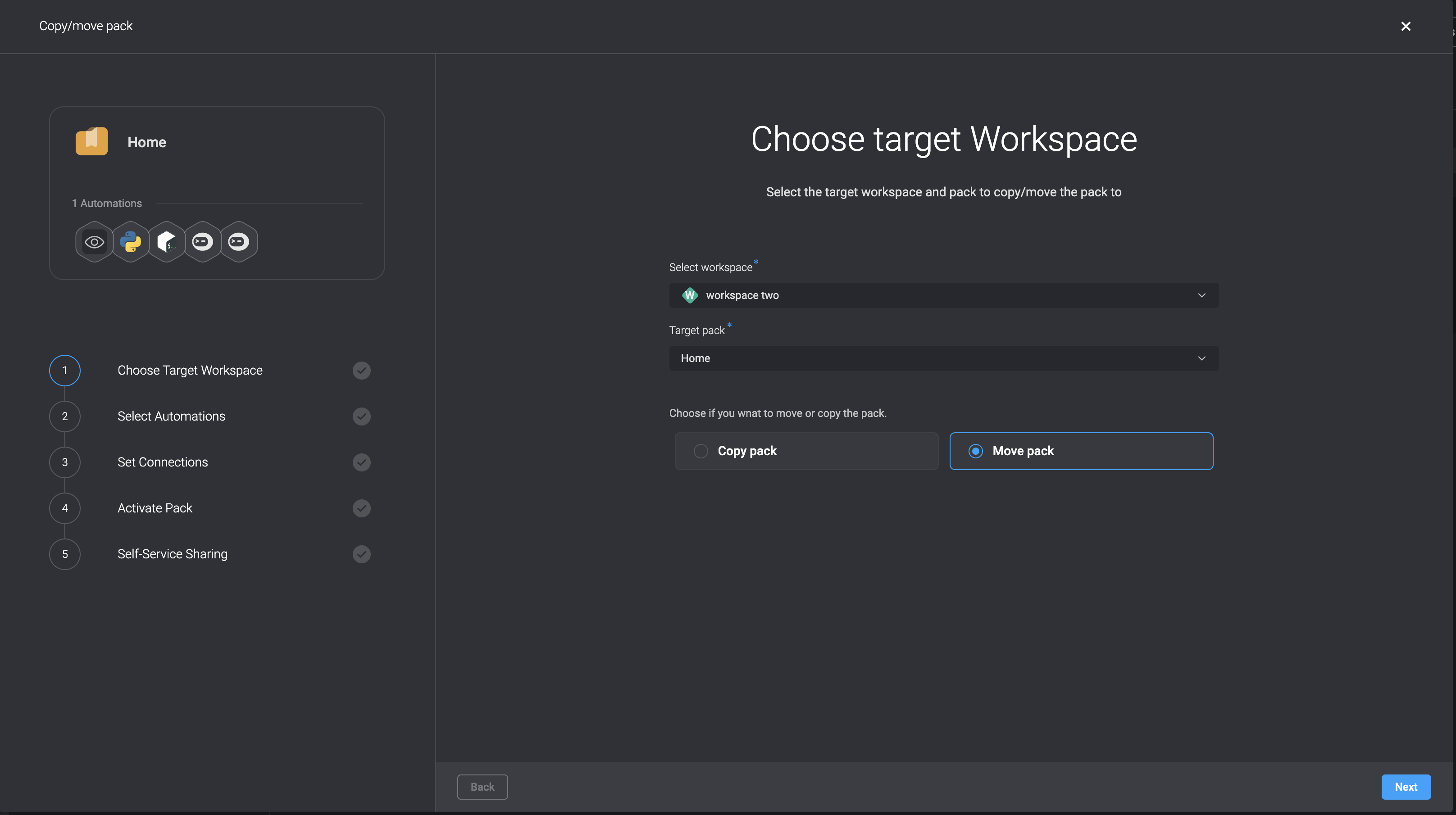
- Choose the automation(s) you’d like to Copy/Move to the target workspace by checking the checkboxes next to them.
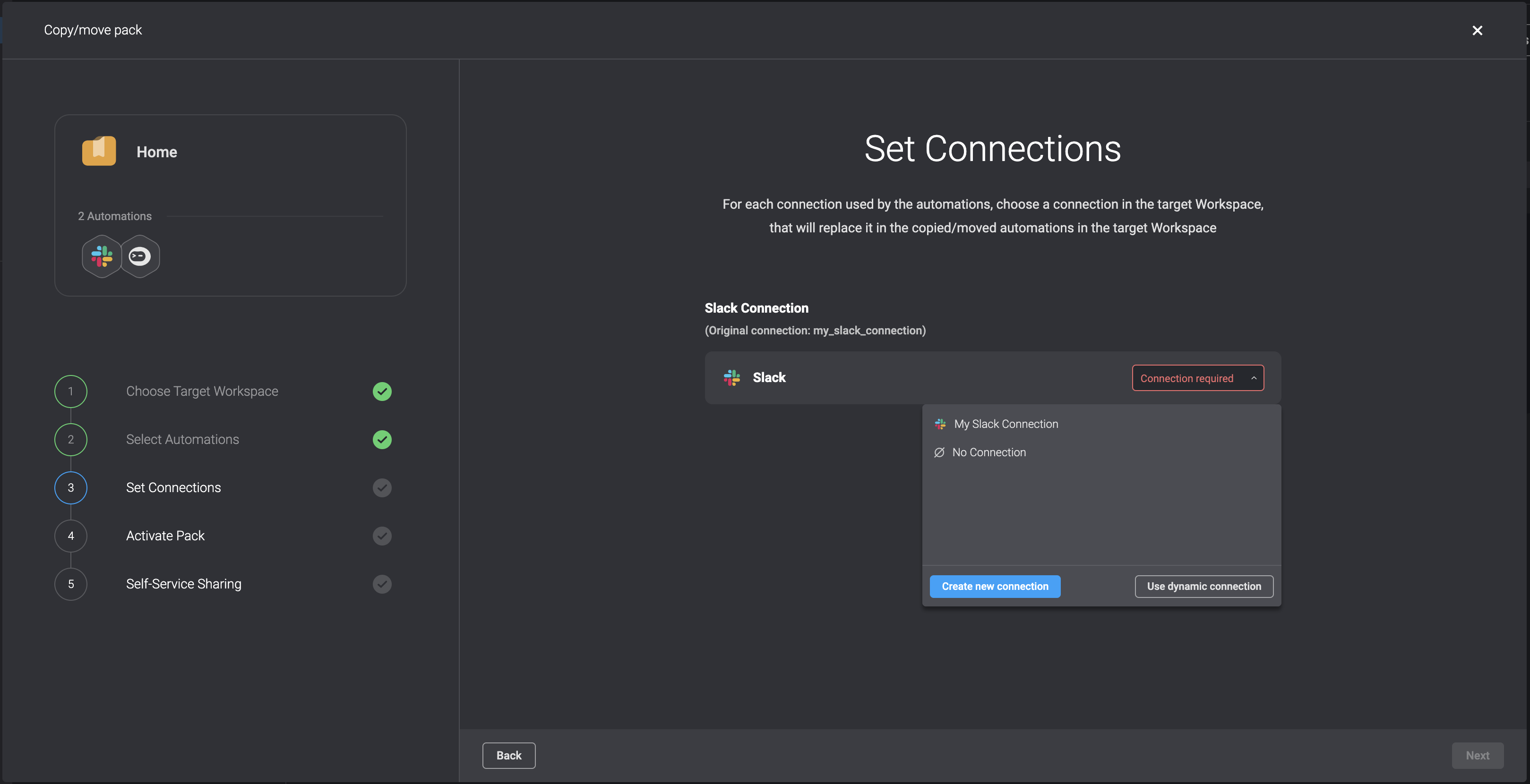
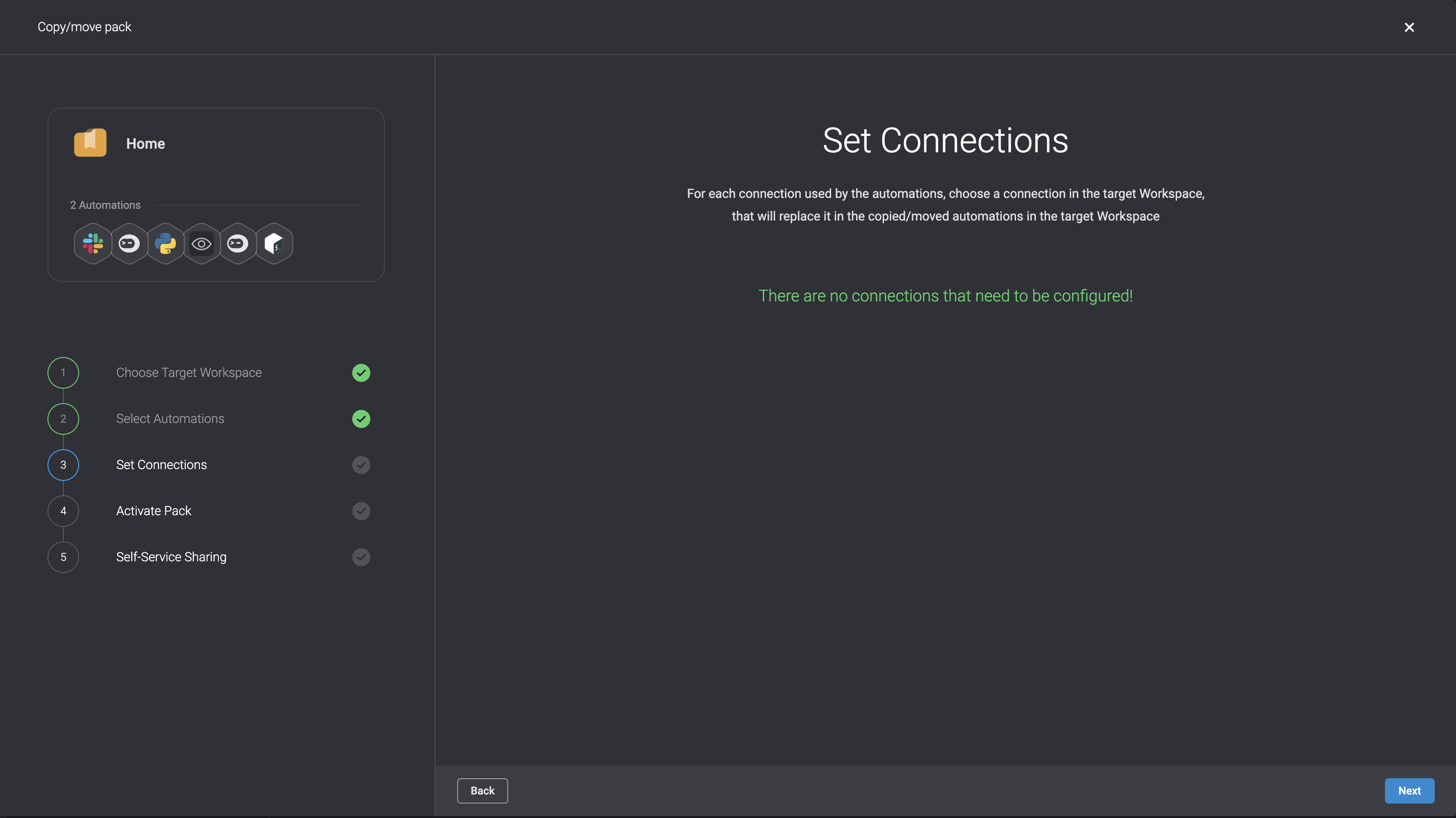
- Set the connections- For each connection used by the selected automtions, set a connections in the target workplace, that will replace it in the copied/moved workflows.
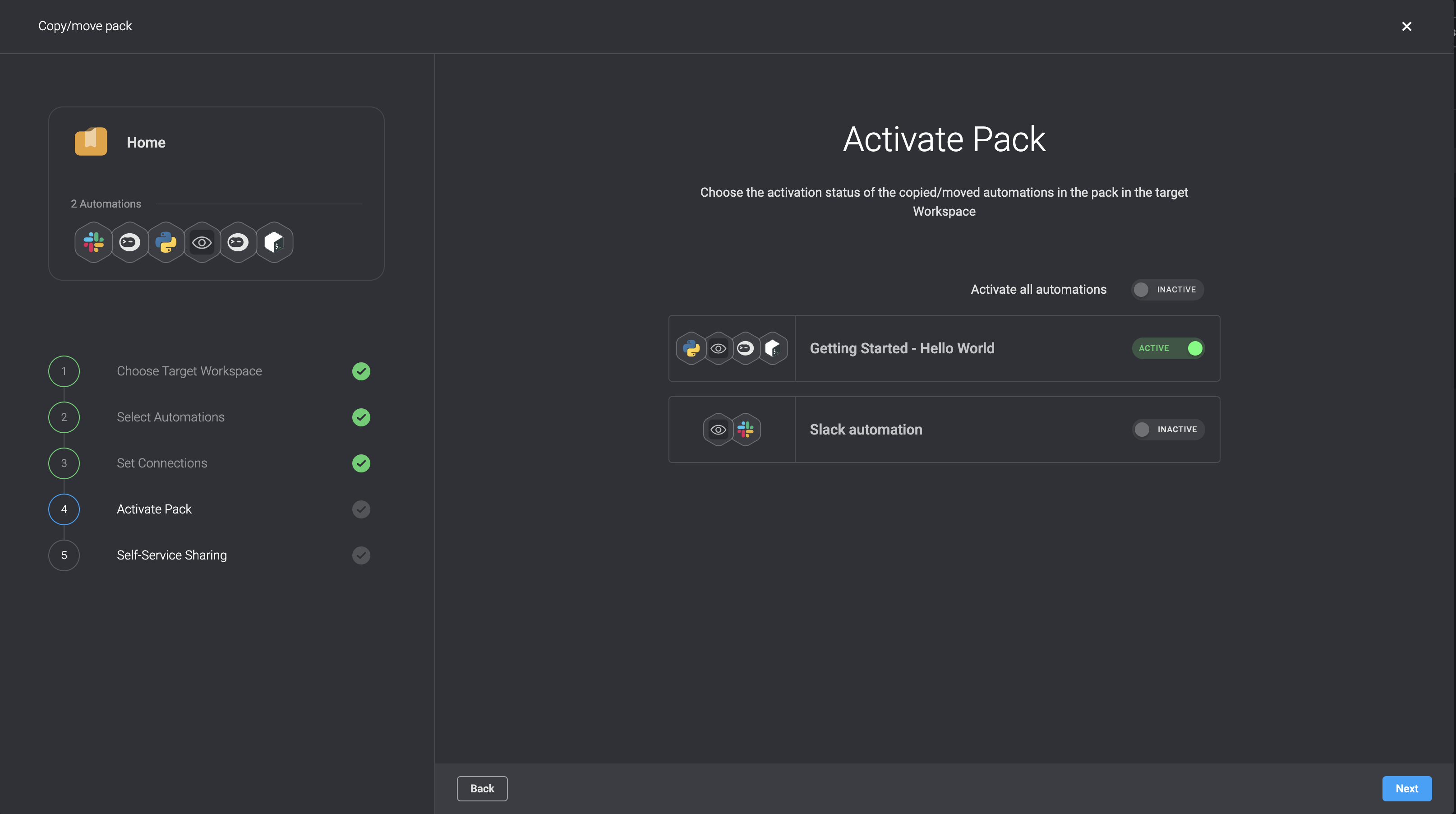
- Choose the activation status of the Copied/Moved workflows in the pack in the target Workspace. You have two options: you can either Activate all workflows by clicking the toggle button next to this option or you can activate specific workflows by toggling the button next to each one individually.
- Decide whether you want to share the Copy/Move automation(s) on the self-sharing portal by toggling the button.
NOTEPlease note that you can share the Copy/Move automation(s) on the self-sharing portal, only if you set the automation as Active in the previous step.
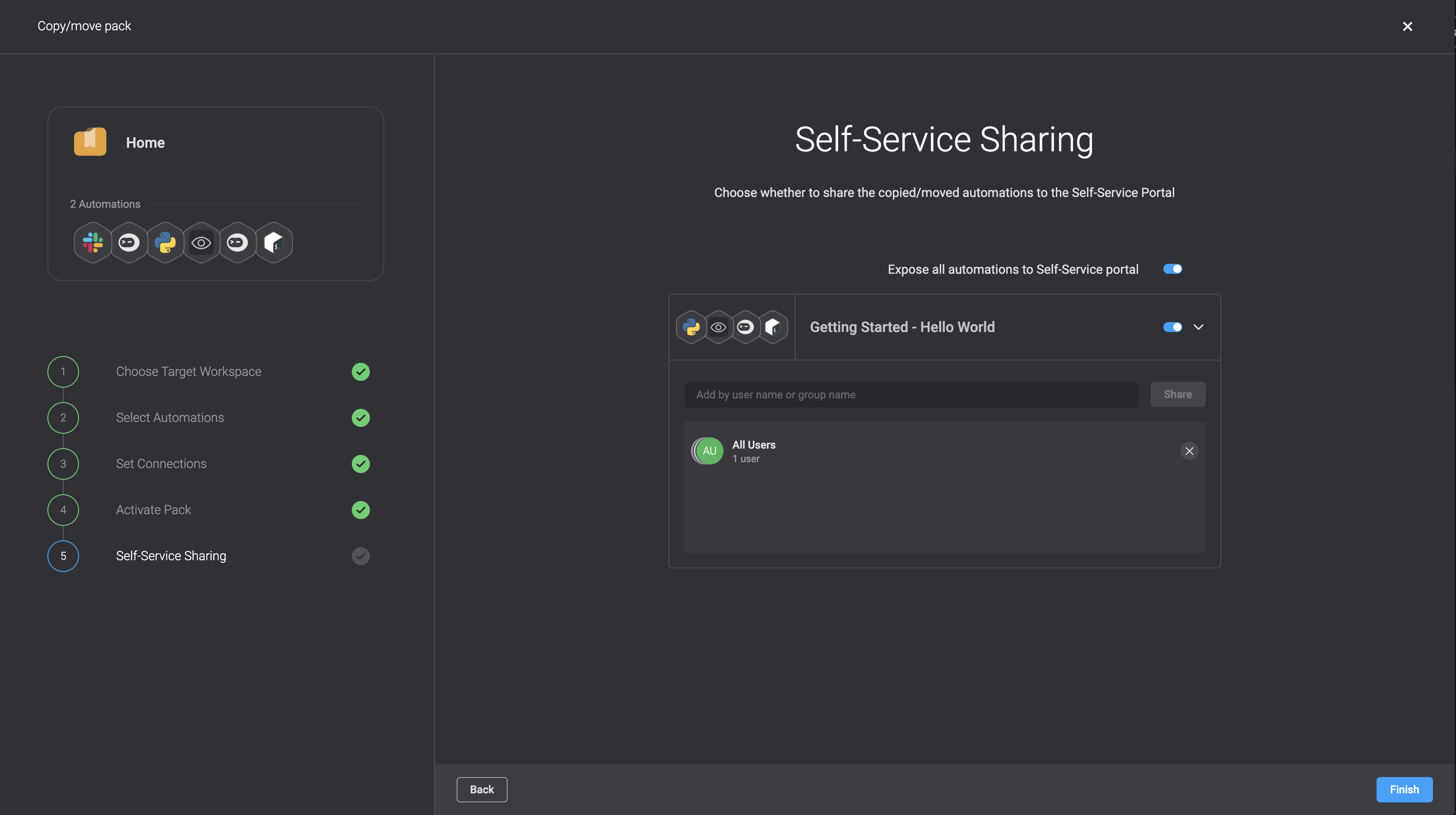
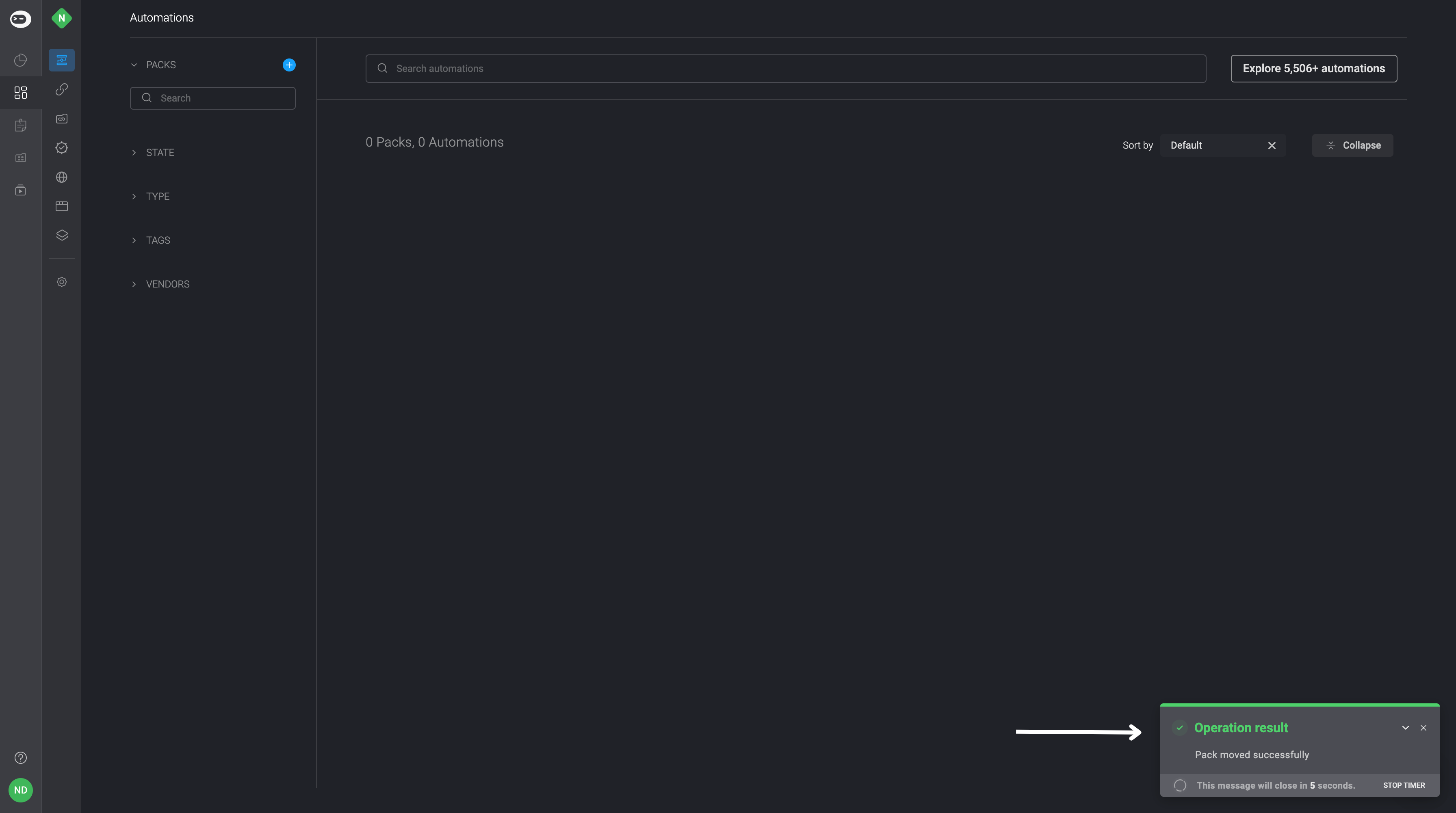
- To complete the process, simply click the Finish button located in the bottom-right corner. An Operation-Result popup will then appear in the bottom-right corner confirming that the pack has been copied or moved.
- You can then navigate to the target workspace where you can access the copied/moved pack and automation(s).