

Disabling Auto-Update of a Runner
Auto-updating is enabled by default. To disable, do as follows:- On the Blink platform, in the lower-left corner, click your initials > Account Settings > General.
- Deselect Enable runner auto upgrade. Runners will not be updated as new versions are available.
Option 1: Updating a Runner Manually
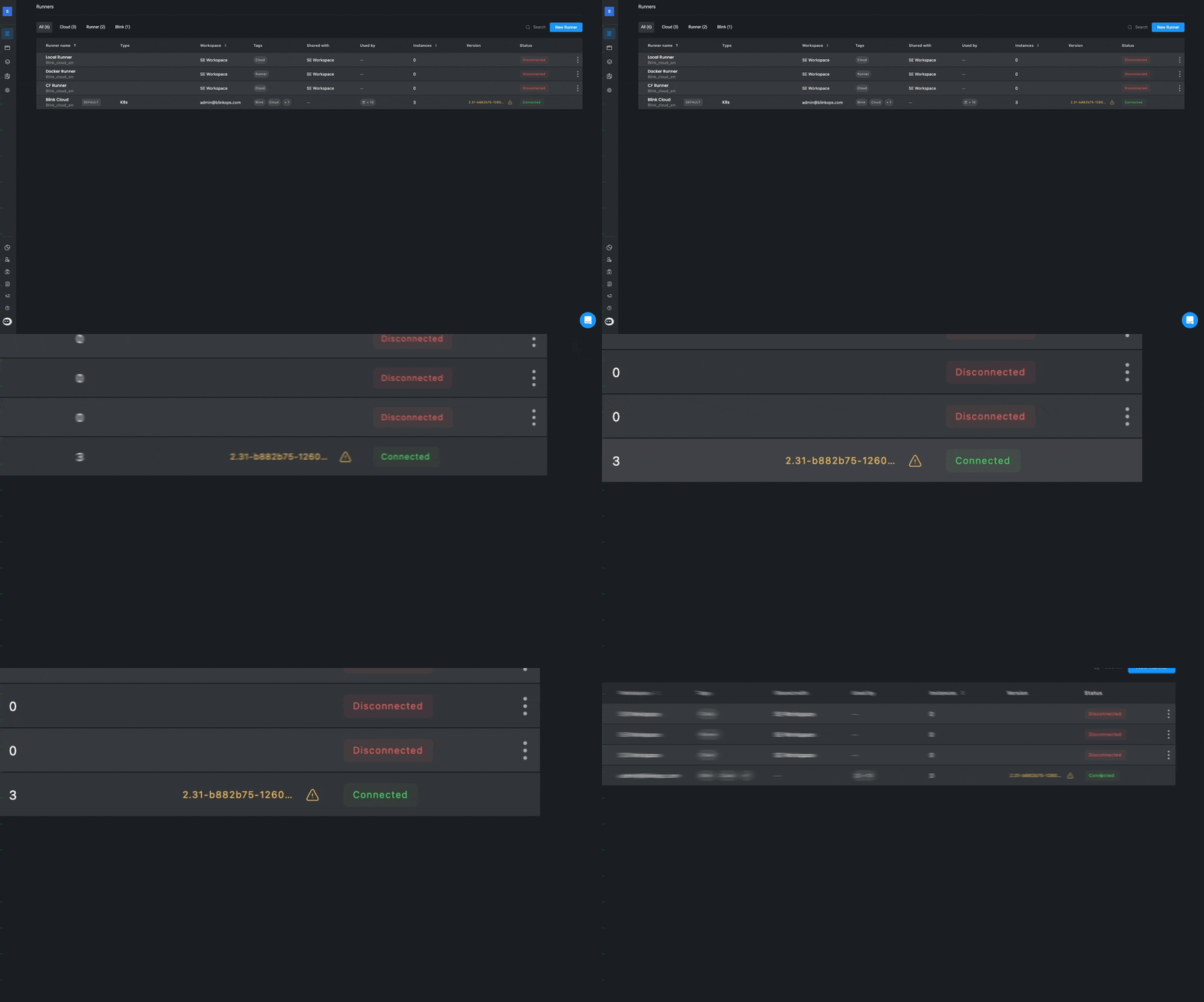
A runner can be updated manually from the Runners page. In the Version column, updated runners name and version appear in white, and runners that need to be updated have a warning sign next to their version.- To manually update a runner, navigate to the Blink Runners page. In the Version column, you’ll see up-to-date runners displayed in white, while those requiring updates appear in yellow. To update a runner, simply click on the version highlighted in yellow. Once the update is complete, the runner’s version will change to white, indicating it is up-to-date.
-
To see the status of the Runner, click > Edit. As the Runner is being updated, the status will change from Connected to Shutting down, and back to Connected.
Option 2: Manual Update via CloudFormation
To update a runner via CloudFormation stack configuration, assuming you have a runner that was deployed via CloudFormation, follow these instructions:- Open the deployed CloudFormation stack via the AWS console.
- In the RunnerVersion parameter, update the value to the new runner version.
- Redeploy the CloudFormation stack.