

Login to the Google Cloud Platform
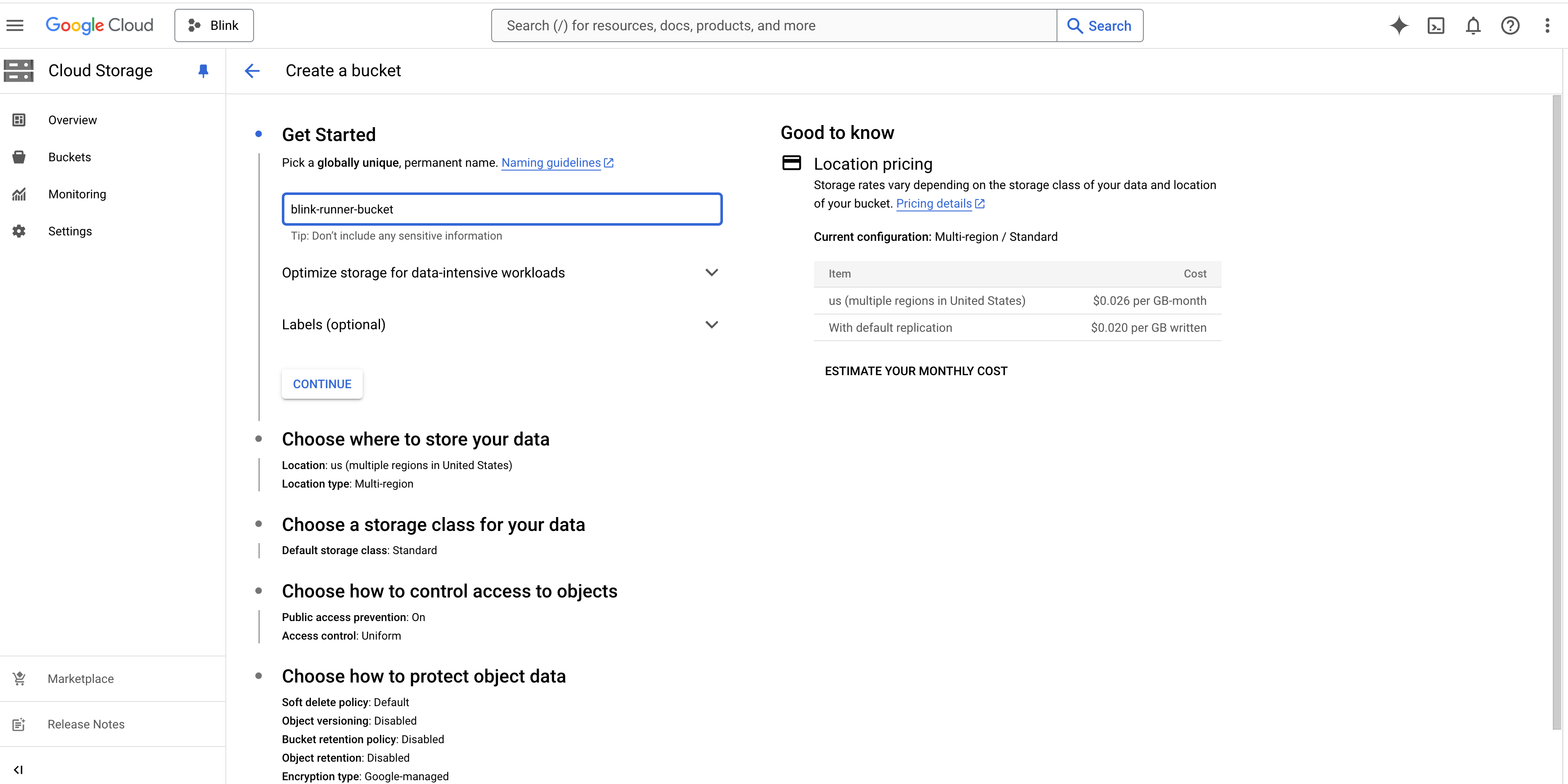
- Login in to Google Cloud Platform, navigate to google cloud storage and click create bucket.
Create a Key for a Service Account
- Go to Settings, open the “Interoperability” tab, and click Create Key for Another Service Account at the bottom.
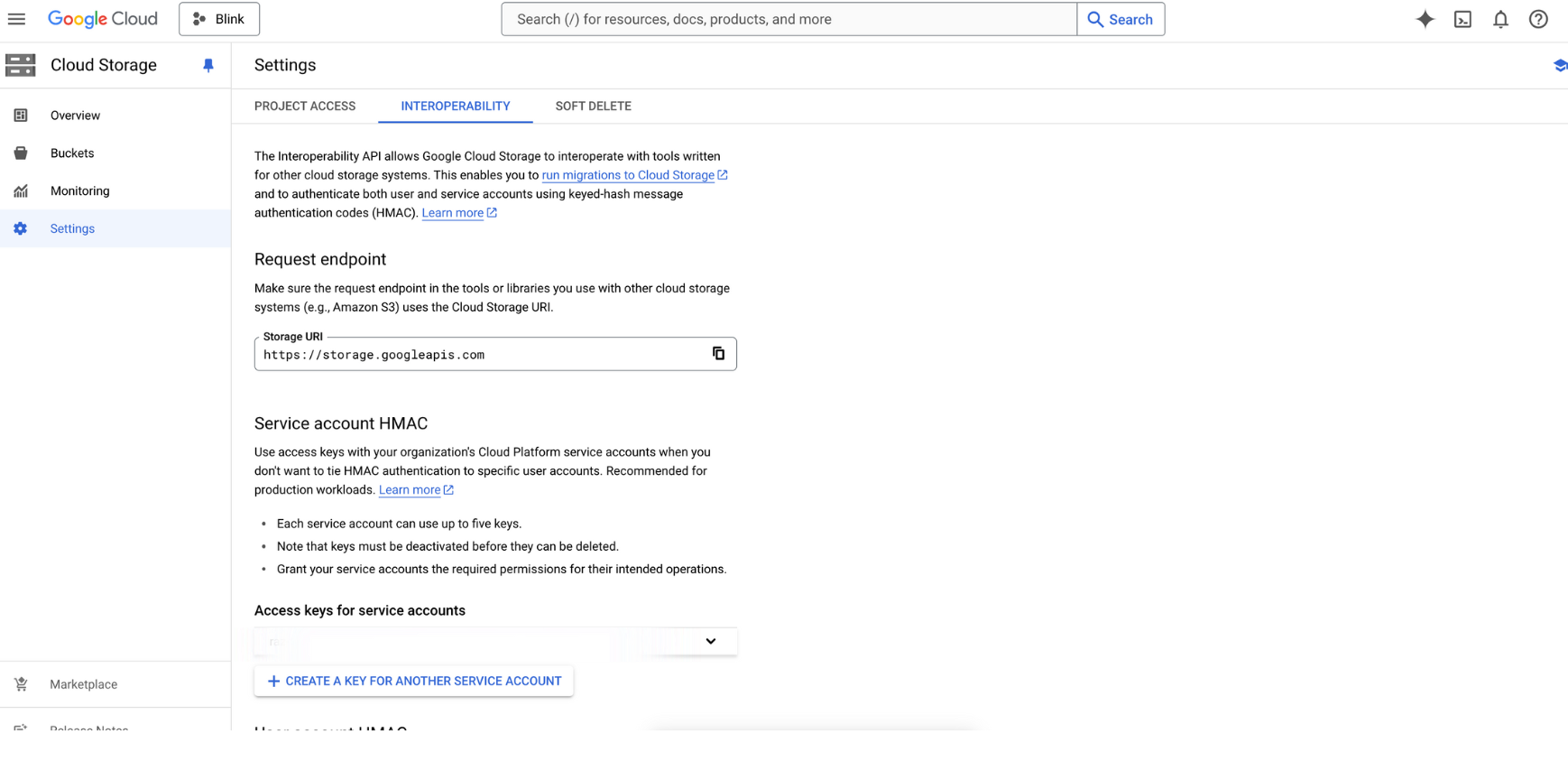
- If using an existing service account, click “Create Key”.
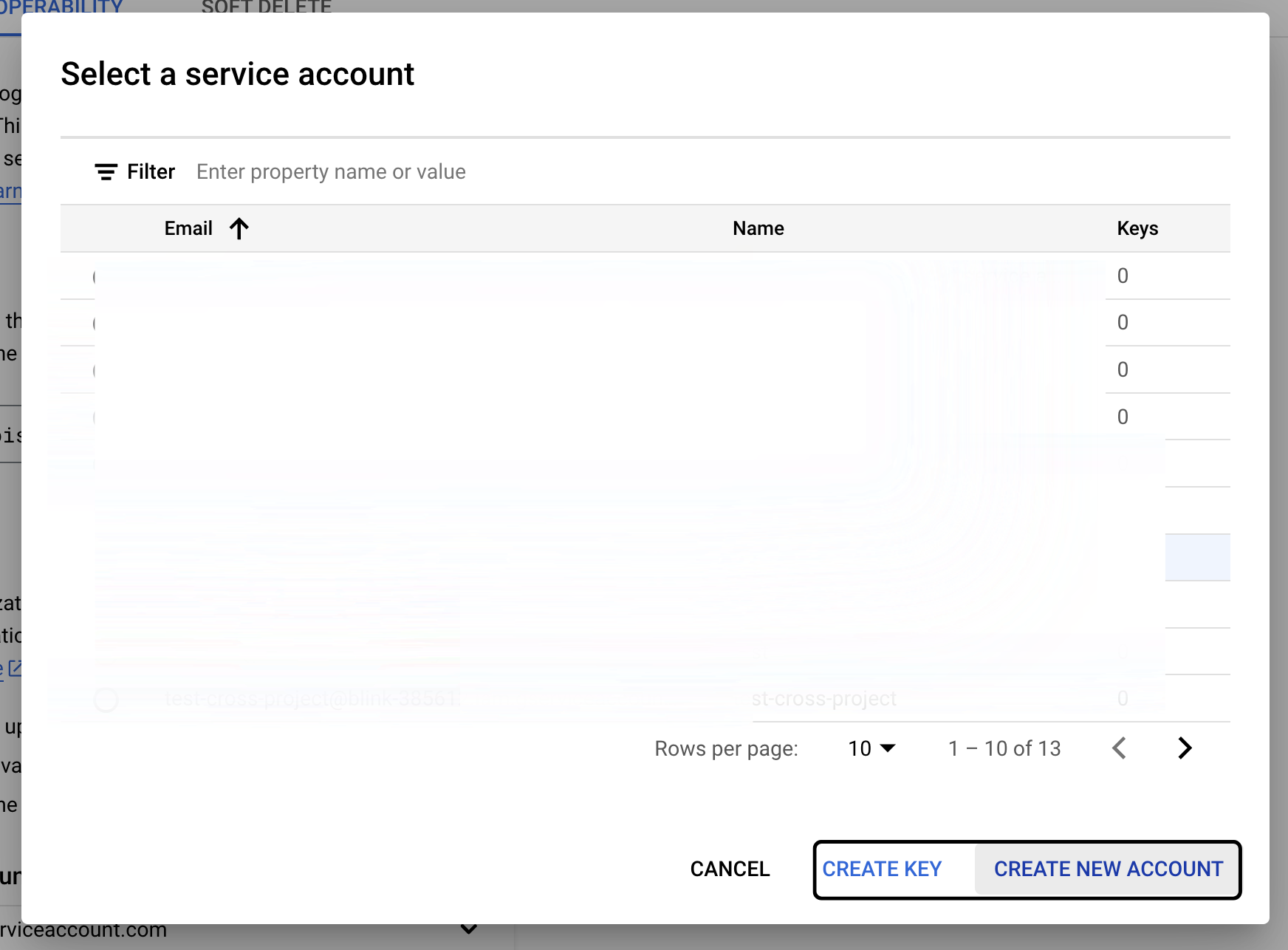
- If creating a new service account:
- Enter a service account name, optionally provide a description, and review the auto-generated Service Account ID and email. Once done, click Create and Continue to proceed.
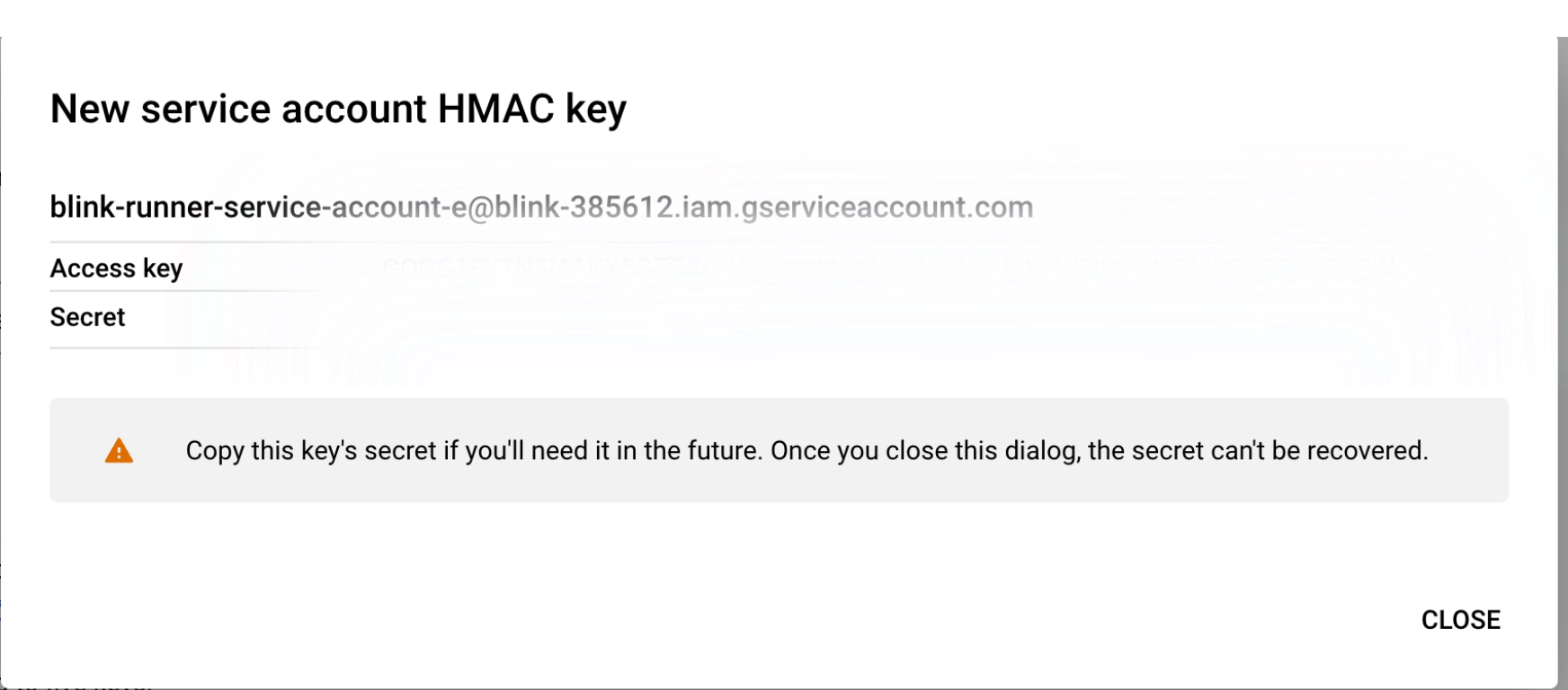
Save the Access Key and Secret key
- An Access key and Service key will be generated. Store the Access key and Secret key in a safe place. This is your only chance to view and save the secret access key.
Deploy the Blink Runner Using the GCP Object Storage Credentials
- After creating an Access key and Secret key, use them to deploy the Blink Runner. Follow the instructions below for Kubernetes or Docker deployment:
Deploying the Runner in Kubernetes
- Run the Helm command provided by Blink, but make sure to include the additional configurations below to enable object storage for the runner:
- Replace <access_key_id> and <secret_access_key> with the credentials created in
Step 4 - Replace blink-runner-bucket with the bucket name created in
Step 2 - Ensure the region matches your bucket’s region
Deploying the Runner in Docker
- Run the Helm command provided by Blink, but make sure to include the additional configurations below to enable object storage for the runner:
- Replace <YOUR_GCS_ACCESS_KEY> and <YOUR_GCS_SECRET_KEY> with the credentials created in
Step 4 - Replace <auth_key> with the authentication key for the runner.
- Ensure the region matches your bucket’s region
- Replace “your-bucket-name” with the bucket name created in
Step 2