

CREDENTIALS and PROJECT_ID.
- Navigate your “Google Cloud Platform” account.
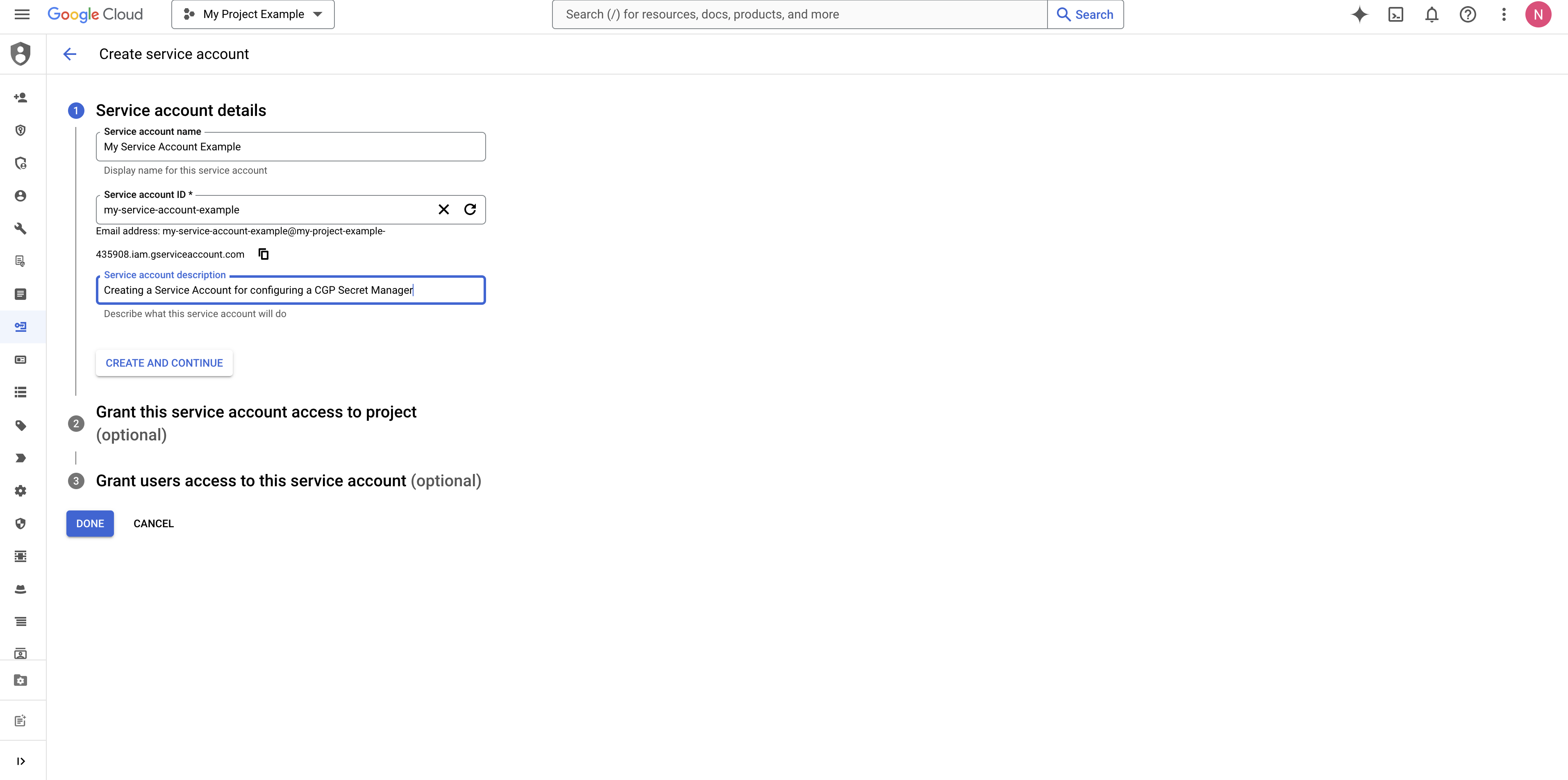
- Create a GCP IAM Service Account.
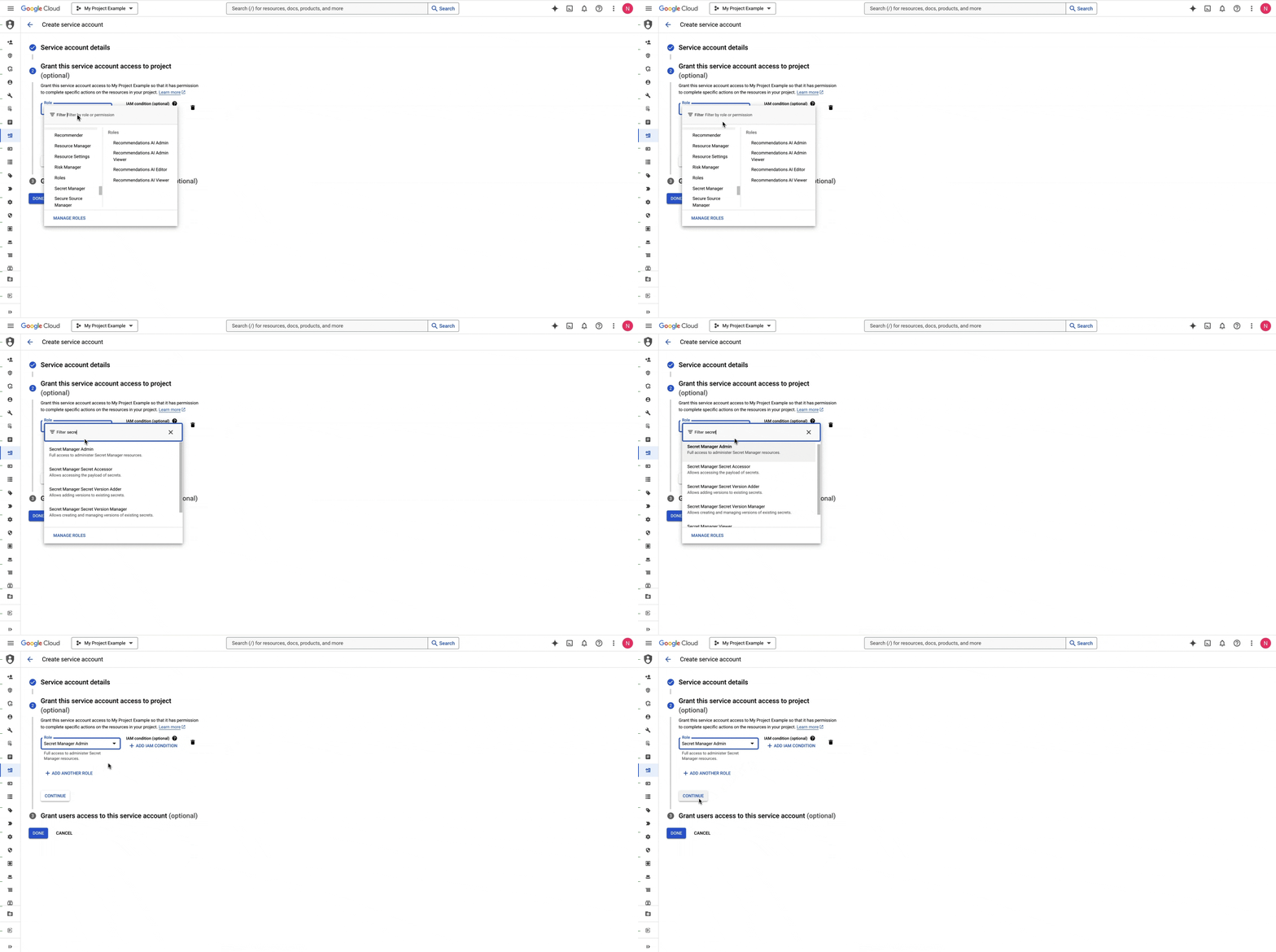
- Assign the “Secret Manager Admin” role to the service account.
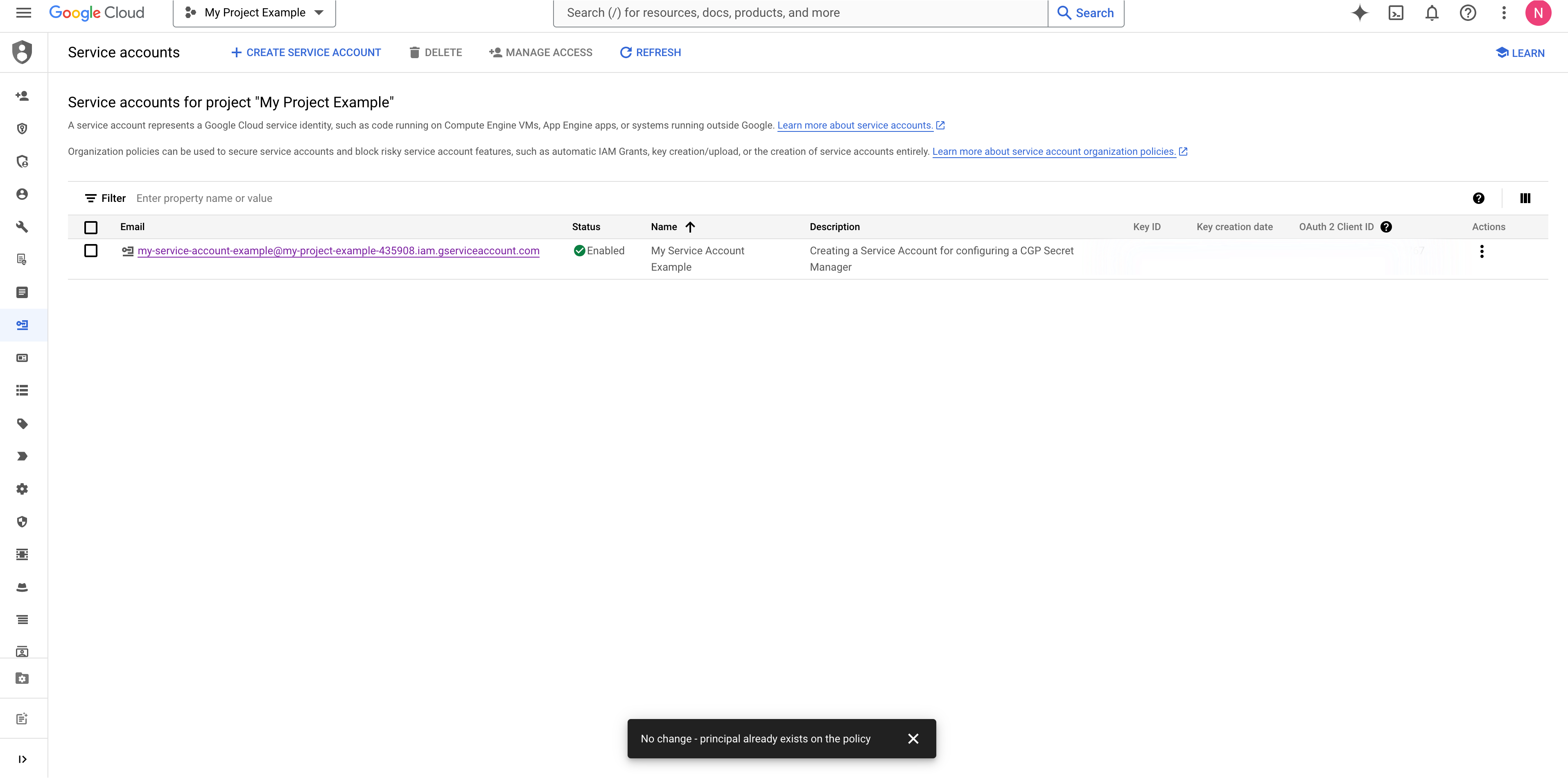
- Obtain and securely save the Service Account credentials.
- Proceed to the Blink Platform and create a new Runner in your Workspace.
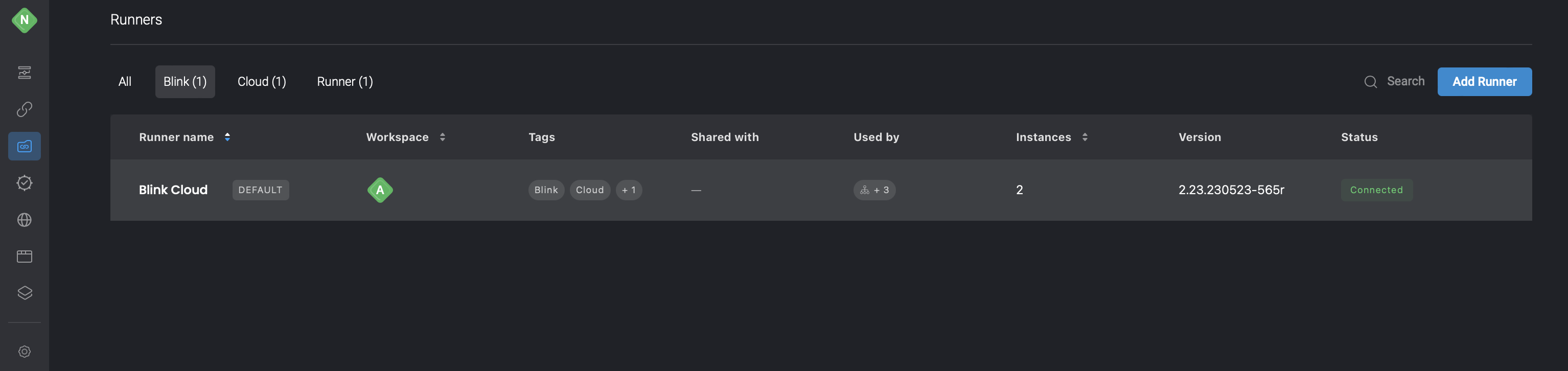
Set new runner group as default for workspace. On the Runners page, click > Set as default.OR Select the checkbox Set as default in Add new runner group.
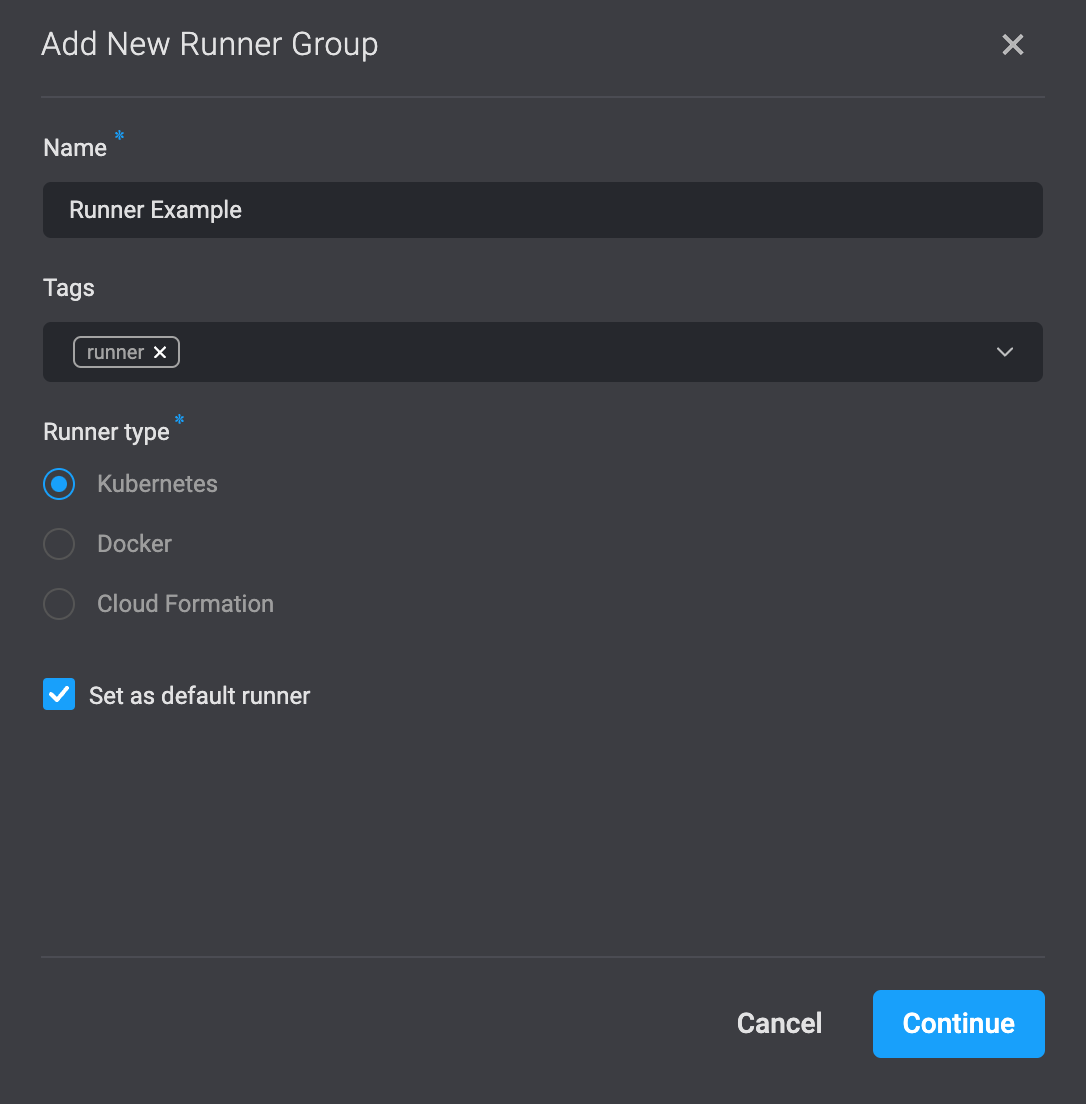
- To proceed, click on the Continue button located in the bottom-right corner. This will prompt the opening of a dialogue box where you can access the command required to install the Runner in your environment. Simply copy this command to your clipboard by clicking on the icon positioned in the top-right corner.
-
Edit the command to add the environment variables you obtained when creating a Service Account:
GCP_SECRET_MANAGER_AUTH_TYPE,GCP_SECRET_MANAGER_CREDENTIALS,GCP_SECRET_MANAGER_PROJECT_IDandSECRET_MANAGER_TYPE
- Docker example command:
- Kubernetes command example:
- Start the Runner, and it will begin accessing the GCP Secret Manager.